
Yesterday, Monday, I was woken up at 8 a.m. by a loud, insistent beep. I knew it was the NAS before I opened my eyes. I ran to check, and nearly lost it: two drives marked as critical, in an array that can never have more than one.
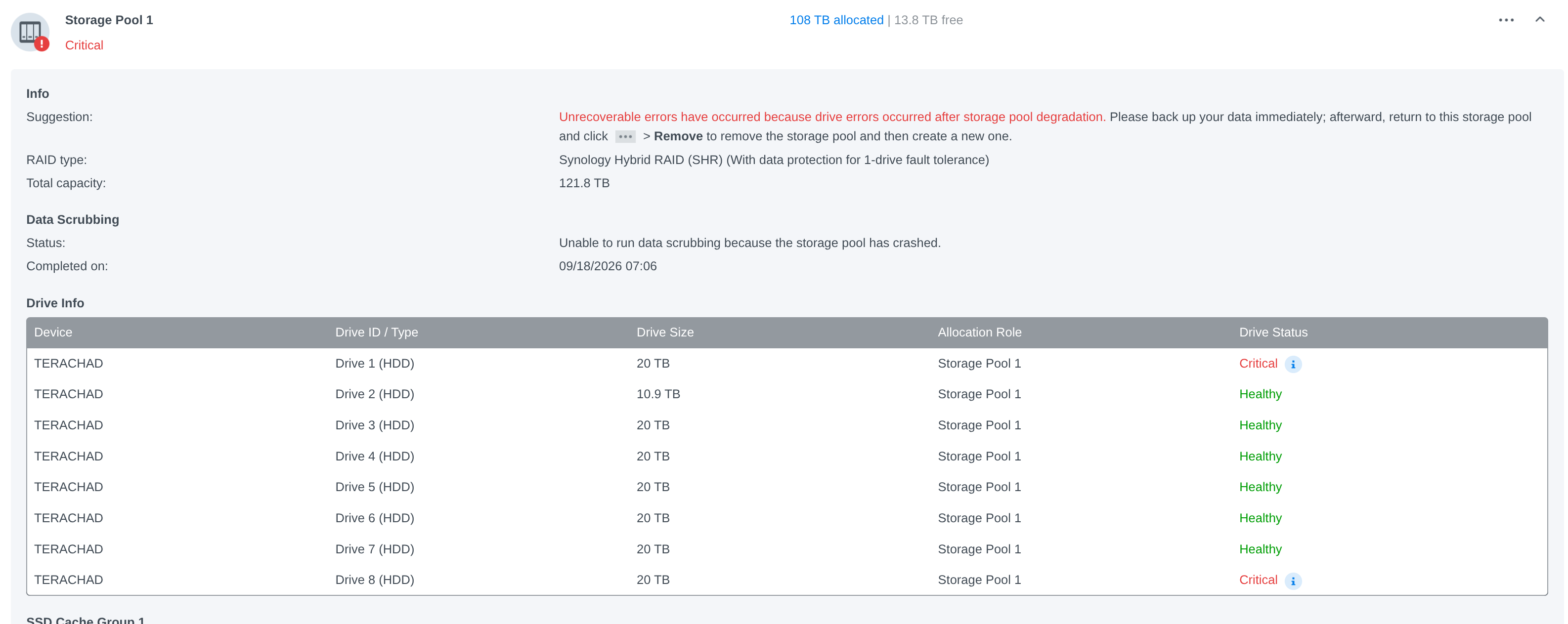
At that moment I knew I was a hiccup away from losing everything. This post is the post-mortem of what happened, and the first part was written in the heat of the disaster, with the rescue copy still running.
Update of October 11: the copy finished and the ending was a happy one. No file was lost by accident, both NASes are healthy, each with its own RAID-6. The full recovery is in the second half of this post. The first part stays as it was published, untouched.
I’ve been using a NAS for a long time
I’m not new to this. I made an entire video mini-series on storage and filesystems (in Portuguese), and I recommend watching it before asking me “what’s a good beginner NAS?”. There is no such thing.
I’ve used external storage since the second half of the 2000s, when I was a Mac user and Drobo existed. The company is gone, but I had three of their DAS units before migrating to Synology, first on an entry-level model and then on the mid-tier DS1821+, which I’ve been using for more than five years. I’ve written about it here, setting up NFS on Linux and accessing it over iSCSI.
It’s been very valuable to me, and you don’t get to question why I need that much space. It doesn’t matter: everyone decides what they keep on theirs.
When I was producing YouTube videos, I edited 4K footage straight from the NAS, thanks to the NVMe cache and 10 GbE networking. I got used to big storage at 10 gigabits and I can’t go back.
The array was organized in SHR, Synology’s hybrid RAID, which in practice behaves like RAID-5 (more on that later): it survives the loss of one drive without losing any data. I always thought that was enough.
Hard drives die. Always
Make no mistake: hard drives go bad. Never, ever trust a lone drive forgotten in a closet. It will fail, and you will lose everything on it.
The best public data on this comes from Backblaze, which runs hundreds of thousands of drives and publishes failure rates every quarter. In the Q2 2026 report, with 354,415 drives monitored, the annualized rate was 1.73%, and the lifetime rate for the whole fleet stands at 1.41% per year.
That sounds small. Translated to human scale:
- One drive on its own, for 5 years: the chance of it dying in that period is close to 7%. That’s roughly the chance of rolling one specific number on a 14-sided die. Would you bet every family photo on that?
- One drive on its own, for 10 years: about 13%, one in eight.
- Eight drives, like my NAS, for one year: the chance of at least one failing is about 11%. In five years, more than 40%.
And those numbers are from a datacenter, with controlled temperature, clean power and drives spinning all the time. A drawer drive that sits idle for years and gets knocked around in a move doesn’t have statistics that pretty.
Memory cards are worse, and there isn’t even an equivalent statistic to consult. What exists is torture testing: the Great MicroSD Card Survey tested 216 cards over a year of continuous writing, and 52 of them, one in four, had already died.
Genuine cards started throwing errors, on average, after about 2,500 rewrite cycles; counterfeit cards, after 700. A memory card is transport media. Keeping the only copy of anything on a microSD is asking to lose it.
The practical conclusion is the same as in the mini-series: important data needs redundancy. A parity array exists precisely so that the death of one drive, which is a matter of time, doesn’t take anything with it.
What happened
With all that, I should have been at ease with my setup. I wasn’t.
It started the day before yesterday, Sunday. For a while I’d been watching the volume approach the ceiling.
At first it was 8 drives of 10 TB. Over the years I swapped them, one by one, for 20 TB drives (DSM shows binary units; on the label they’re 12 and 22 TB). It’s a slow process: each swap takes days, because the array has to rebuild and redistribute the data.
I decided to swap one more, the seventh. Synology supports hot-swap, so it’s simple: pull the old drive, slot in the new one, add it to the array and let DSM handle the rebuild.
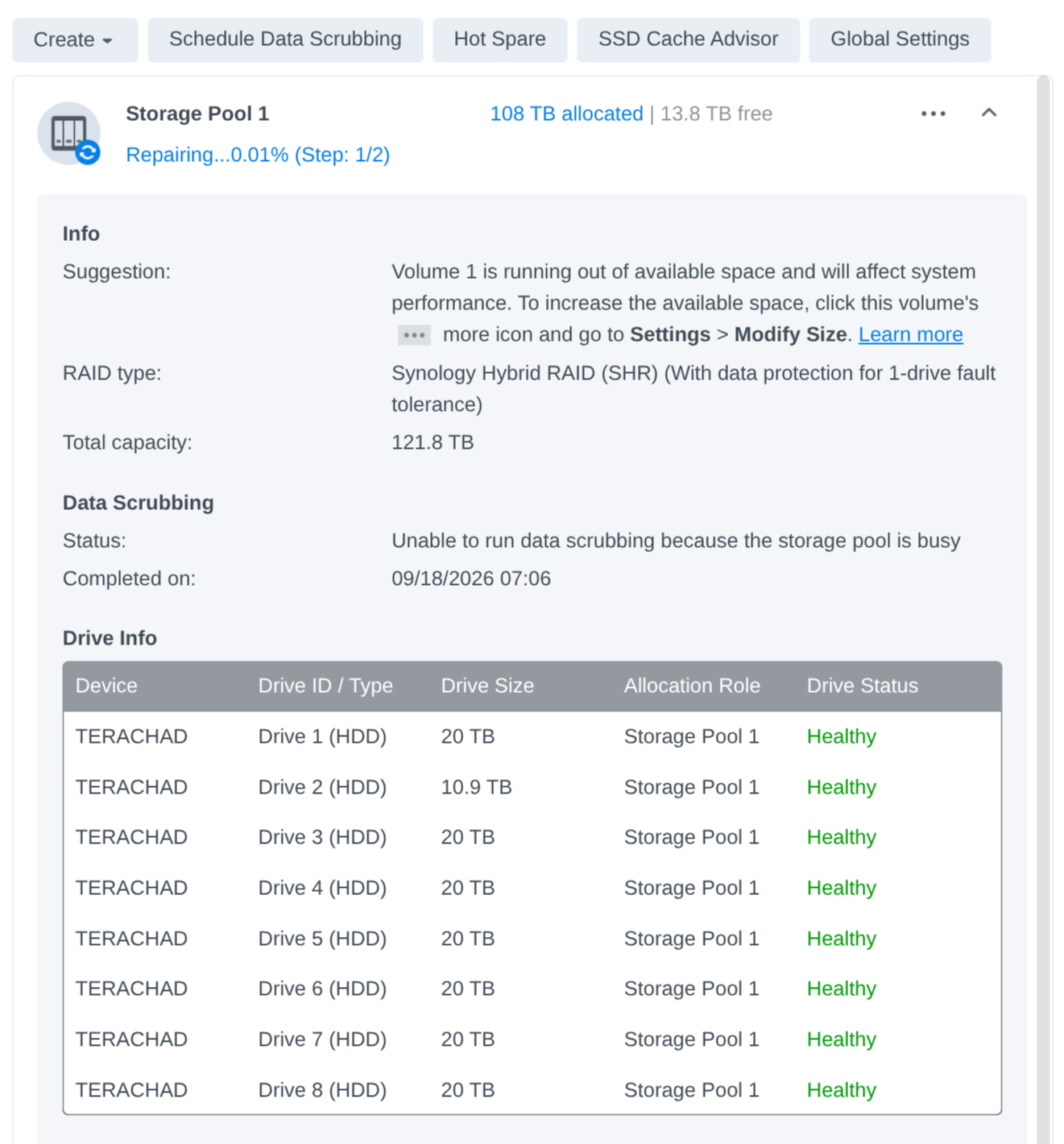
On Sunday night it looked like this: rebuild starting, all eight drives healthy, 108 TB allocated out of 121.8 TB.
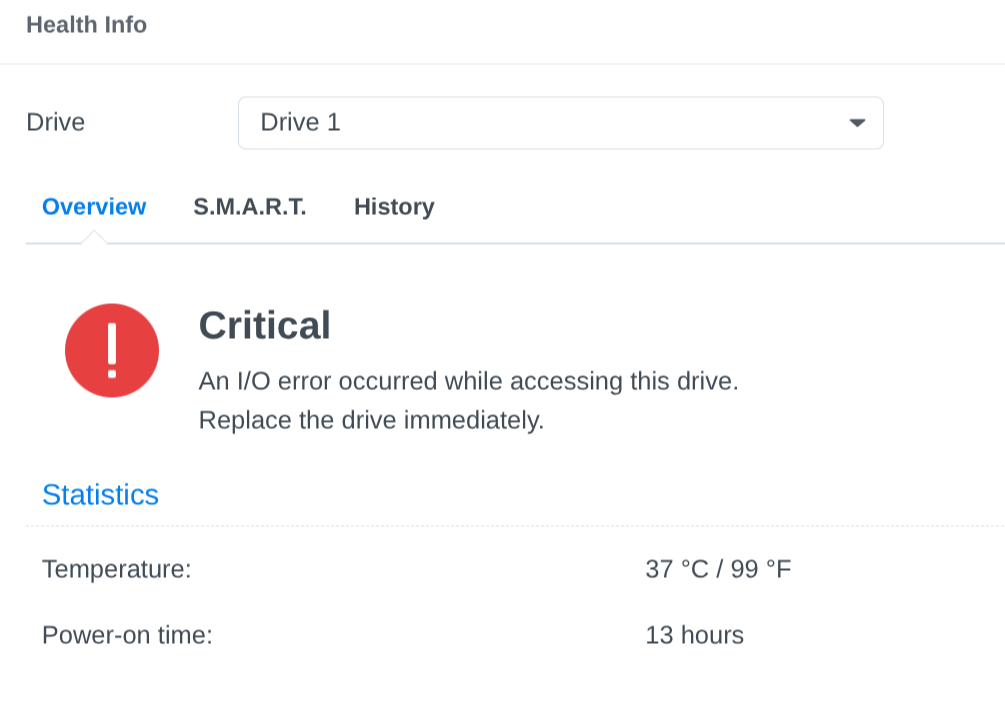
On Monday, at 8 a.m., the beep. Drive 1, the new one, with 13 hours of use, marked critical:
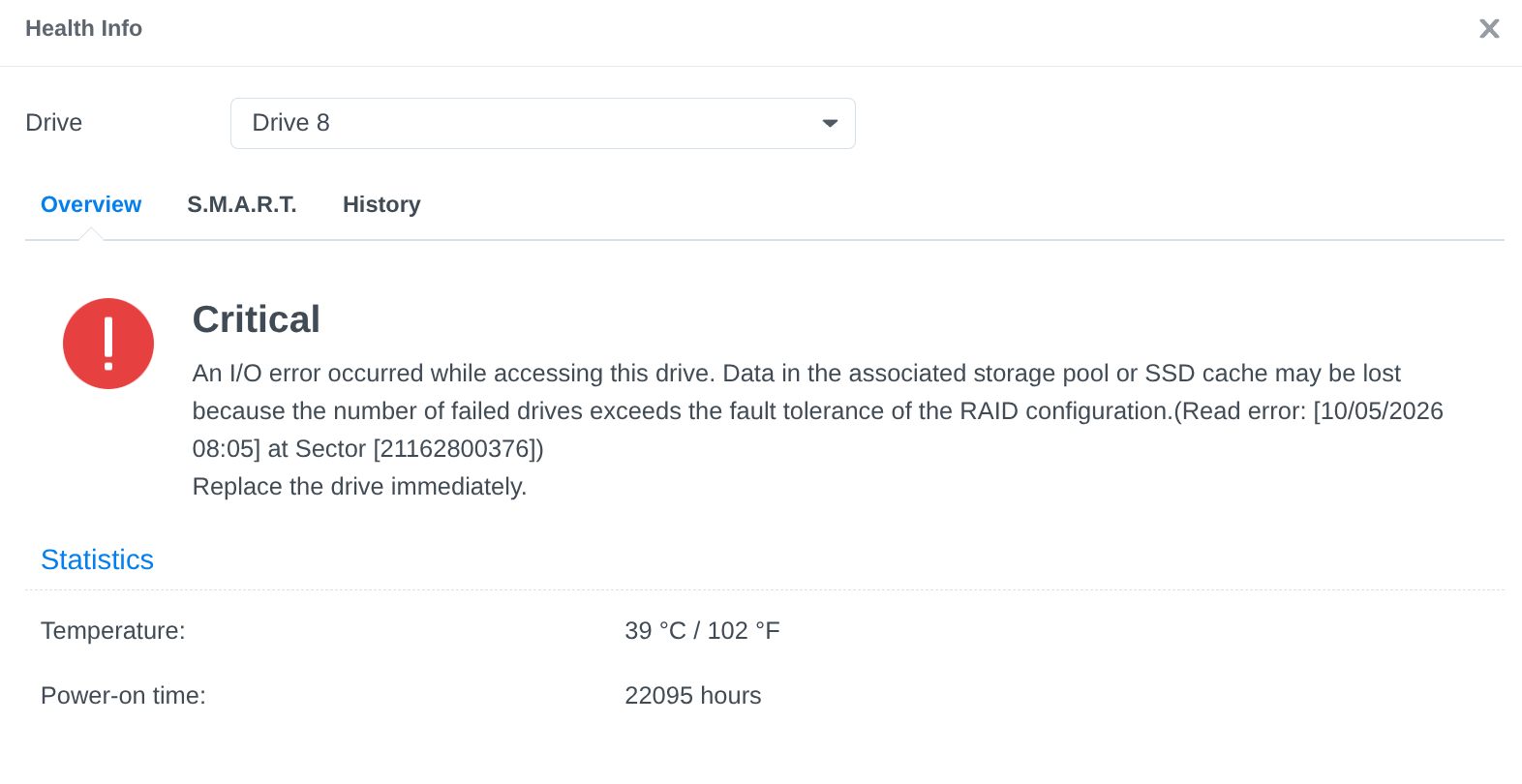
And drive 8, one of the old ones, with 22,095 hours powered on (two and a half years), also critical, with a read error at 08:05:
The pool’s message left no room: “Unrecoverable errors have occurred because drive errors occurred after storage pool degradation. Please back up your data immediately.”
Why two drives is the end
In RAID-5, if two drives go down, redundancy is zero, and in theory the whole array goes with them. It’s an unrecoverable situation.
Anyone who watched my playlist knows why. An array like this doesn’t store “files,” one per drive. A file is a collection of blocks, and the blocks are spread across all the drives, along with the parity. Losing a drive is losing a piece of every file. It doesn’t matter that the other seven are healthy, because they only have parts.
Parity is there to recompute the missing piece when one drive disappears. With two missing, the math doesn’t close.
And there’s a cruel detail in the rebuild: to recreate the new drive, the array has to read every other drive end to end. That’s more than 100 TB of continuous reading. If some old drive had a bad sector hiding in a corner nobody had read in a long time, that’s when it shows up. That’s what happened with drive 8.
Where do you copy 90 TB to?
The only way out, at that point, was to thank the heavens that the volumes were still accessible, with the files showing up, and use the window to copy everything out immediately. I couldn’t touch anything else.
The problem: copy about 90 TB to where? Nobody has an empty 100 TB NAS lying around at home.
Normally I’d buy this kind of hardware in the United States, on a tourist trip, and bring it back with me. It’s much cheaper. Buying expensive electronics in Brazil isn’t worth it: the country has charged import taxes worse than Trump’s tariffs for decades, and the final price usually goes past double the American list price.
Except I had to choose. What is it worth to lose 90 TB of data I spent years collecting and that is nearly impossible to recover from anywhere else? It’s one of those situations where the answer is “it’s priceless,” and so, whatever the price, I pay.
I found a storage reseller close to home, Controle Net. Good people, very quick to respond, and they sent me a proposal for equipment with same-day delivery.
Their first suggestion was a QNAP TS-832PX. I researched it before accepting. It has the same 8 bays and ships with 10 GbE, but the processor is a 1.7 GHz ARM Cortex-A57 (Annapurna Labs AL324) with 4 GB of RAM, half the 8 GB minimum that QuTS hero asks for. For RAID-6 on ZFS, with checksums and double parity on every block, that’s weak hardware, as I explain further down. And it would be a downgrade from the DS1821+ I already had, which runs on a Ryzen V1500B.
I asked for another option, and after some back and forth I settled on a QNAP TS-873A, 8 bays, with the same Ryzen V1500B as my Synology, 8 GB of RAM, and 10 Toshiba MG11 24 TB enterprise-class drives.
This is why you have to do your own research and know, objectively, what you want to do with the equipment. The reseller didn’t act in bad faith: they suggested an 8-bay NAS to someone who asked for an 8-bay NAS. The one who knew it would run ZFS in RAID-6 was me. If I had accepted the first proposal in a panic, I’d have paid a lot for a worse machine than the one I was replacing.
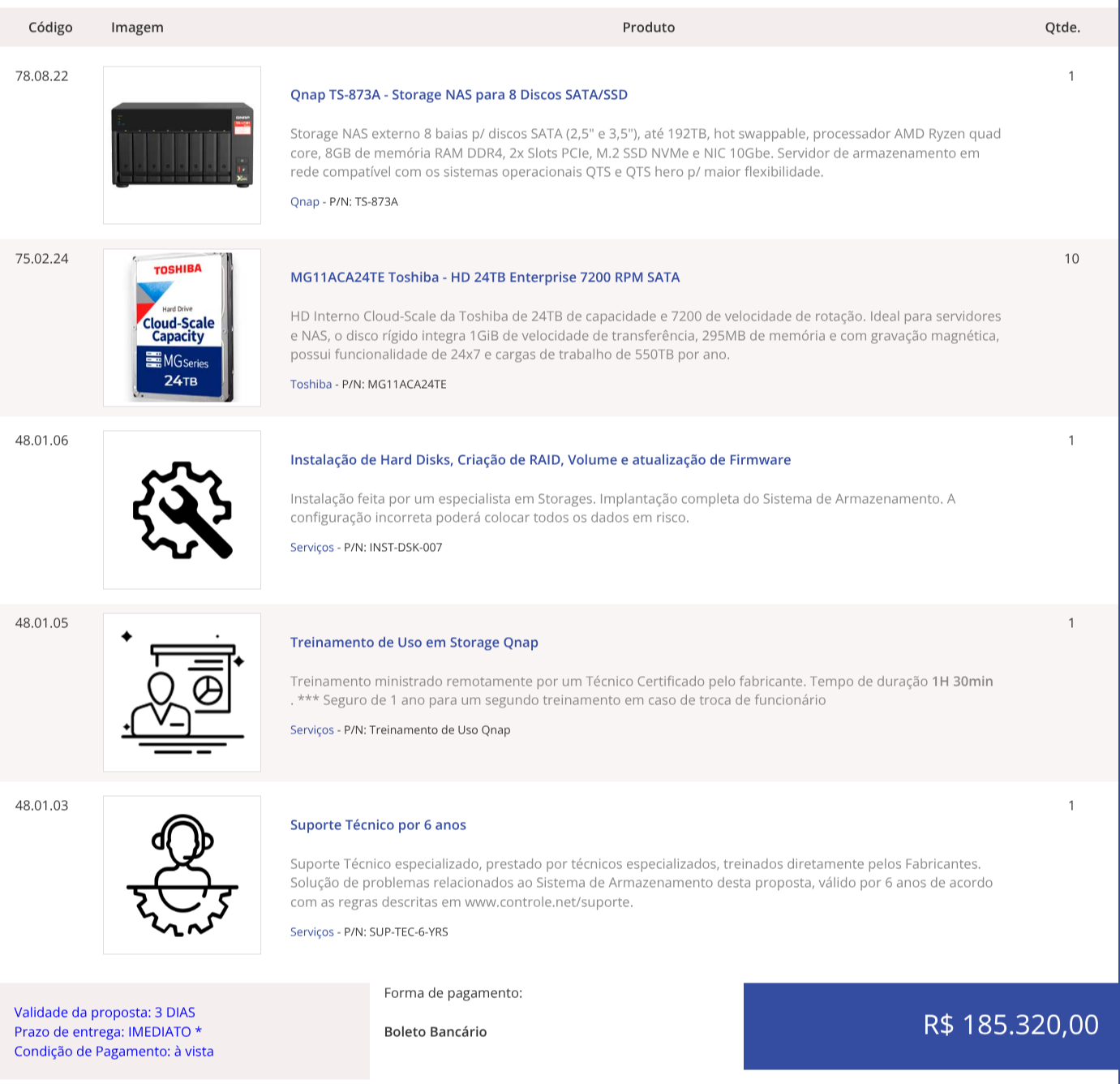
R$ 185,320.00. Eye-watering.
What it would cost in the United States
I checked today’s American list prices. About the exchange rate: the dollar is at R$ 4.97 right now, but that’s the effect of Sunday’s first-round election results, which knocked the rate down more than 4% on Monday. Through Friday it closed at R$ 5.22, and that’s the fair rate to compare with, because that’s the rate the reseller’s stock was built at:
| Item | US price | Total |
|---|---|---|
| QNAP TS-873A-8G (QNAP store, Newegg) | US$ 1,199 | US$ 1,199 |
| 10 × Toshiba MG11ACA24TE 24 TB (B&H) | US$ 999.99 each | US$ 9,999.90 |
| 10 GbE card QXG-10G2T-X710 (B&H) | US$ 351.99 | US$ 351.99 |
| Total | ~US$ 11,550 |
At R$ 5.22, about R$ 60 thousand. I paid R$ 185 thousand, more than three times that.
The comparison isn’t perfect: the Brazilian proposal includes installation, training and six years of technical support, and the equipment was on my desk by the end of the same day. But it gives the measure of the Brazil effect.
If the rule of thumb is “double the American price,” normal would be about R$ 120 thousand. The extra R$ 65 thousand is, in my own rough estimate, the sum of services, local stock of enterprise drives and my urgency. Whoever buys on a Monday morning with the array dying is in no position to haggle.
And drives are expensive everywhere
To make it worse, this is the worst possible moment to buy hard drives. The AI bubble is sucking up production.
| Indicator | Before | Now |
|---|---|---|
| WD Blue 4 TB (Camelcamelcamel history) | US$ 67 to 85 | US$ 99, nearly 50% more in five months (February 2026) |
| Production capacity | available at retail | WD: 2026 practically sold out, with contracts through 2027 and 2028; Seagate: nearline capacity fully allocated |
| WD gross margin | 41.0% a year earlier | 54.1% in the quarter ended July 2026 |
I thought Seagate had left the consumer market. I checked, and that’s not quite it: it hasn’t left, but in February 87% of its hard drive sales were already nearline drives, for datacenters, and WD gets 89% of its revenue from cloud customers and only 5% from retail. WD’s CEO said the company is “pretty much sold out for calendar year 2026.”
Seagate has said it won’t expand production capacity; growth comes only from higher-density drives. For someone buying drives at home, the practical effect is similar to them having left: you get what the hyperscalers didn’t want, at whatever price the seller asks.
QNAP instead of another Synology
After spending the morning and afternoon between negotiation, paperwork and payment, by the end of the day I had the QNAP powered on next to the Synology.
Choosing QNAP went beyond availability. Synology has been making questionable business decisions.
In 2025 it launched the Plus line requiring its own-brand drives or drives it certified.
The own-brand ones are Seagate, Toshiba and WD drives rebadged with custom firmware, and anyone using something else was left without pool creation, health monitoring, deduplication or firmware updates. After the outcry, it walked that back in DSM 7.3 and allowed HDDs and SATA SSDs from other brands.
Except M.2 pools still require the compatibility list. The uncertainty is left hanging: what stops them from doing it again?
Setting up the QNAP is very easy. QuTS hero, their ZFS-based system, is as simple to use as Synology’s DSM.
Fixing my mistake: RAID-6 and ZFS
This time I knew I had to configure RAID-6, which survives two drives failing at the same time. The downside is less total capacity, because the equivalent of two drives becomes parity instead of one. The upside is that I shouldn’t have to go through an emergency like this again.
One of QNAP’s strengths is supporting ZFS out of the box, well integrated and easy to use.
For those who don’t know it: ZFS was born at Sun Microsystems, for Solaris, in the mid-2000s, and today lives on as OpenZFS on Linux and FreeBSD. It merges into one system what used to be three layers, the RAID, the volume manager and the filesystem. It keeps a checksum of every block, so it notices when a drive silently returns corrupted data, and repairs it on its own from parity. And it never overwrites data in place: every write goes to a new block, which makes snapshots practically free.
Its reputation as a RAM hog comes from two things. The first is the ARC, its cache, which by design takes up almost all the machine’s free memory. That scares anyone looking at the graph, but it’s cache: it gives the memory back when another process asks. The second is deduplication, which keeps a huge table with the hash of every block and needs it in RAM or it becomes unusably slow. The old rule of “1 GB of RAM per TB of disk” comes from there, and only applies to people who turn deduplication on.
Even without it, ZFS is heavier than ext4 or a simple Btrfs. Computing checksums, compression and double parity for every block costs CPU, and with little memory the cache shrinks and everything gets slow. On weak hardware, like an entry-level NAS with an ARM processor and 2 GB of RAM, it suffers.
QNAP asks for at least 8 GB for QuTS hero. Mine came with 8 GB and a quad-core Ryzen, which works for my use, which is storing large files and serving them over the network. Deduplication stays off.
I bought 10 drives for an 8-bay NAS, so two are left in the drawer as spares, for the day one fails.
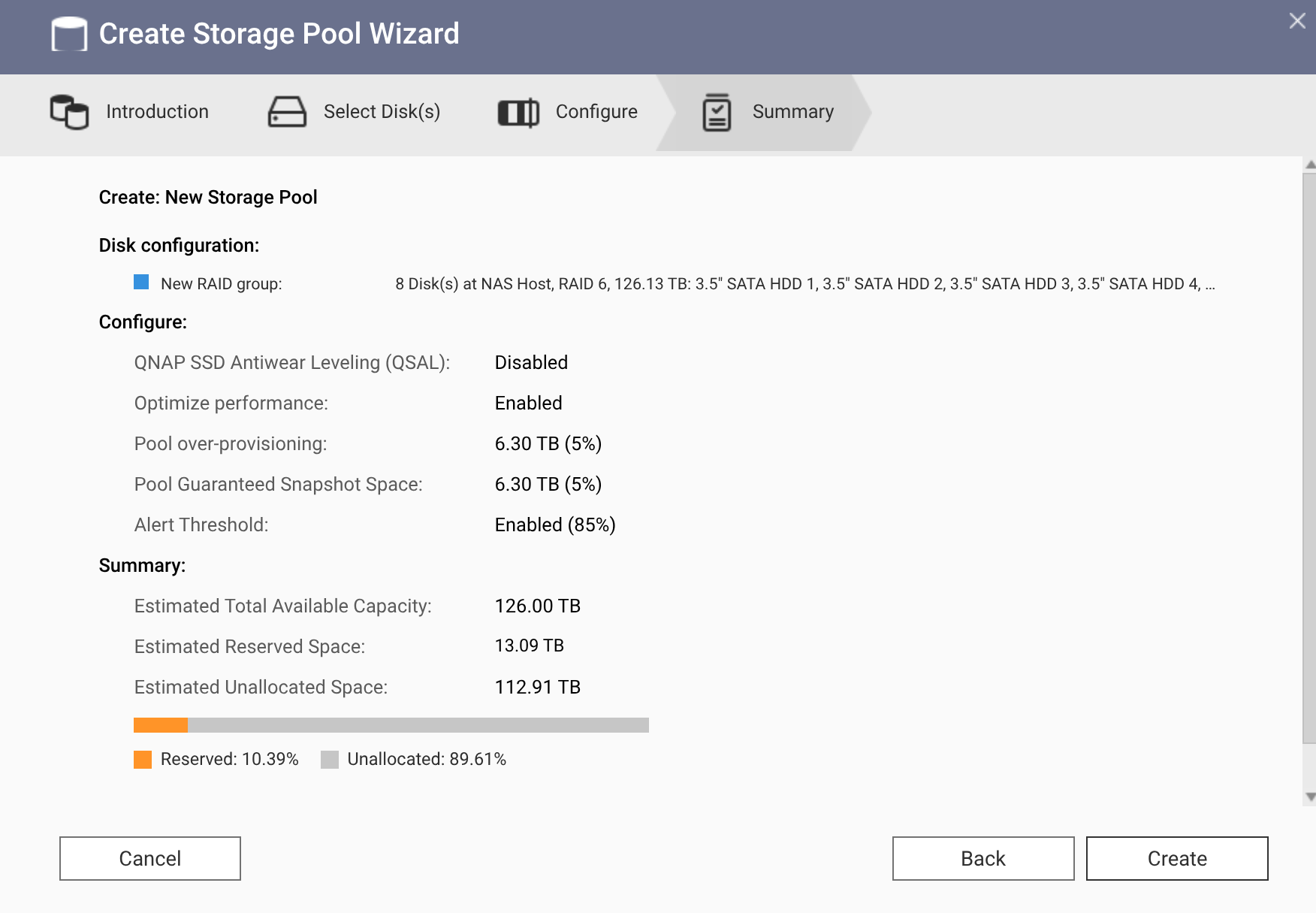
For my simple setup, three settings:
- 5% over-provisioning. It’s a slice of the pool the system reserves and never hands out for data. ZFS always writes to new space and gets slow when the pool fills up near the limit; this slack keeps performance stable. On SSD pools it also extends drive life, but these are hard drives, so the minimum is enough.
- 5% guaranteed snapshot space. It’s the reserve for snapshots, the “photos” of the state of your files that let you go back after an accident or ransomware. Guaranteeing the space means the snapshots keep existing even if I fill up the rest. My data changes little (it’s mostly cold archive), so snapshots take almost nothing and 5% is plenty.
- Alert at 85%. The system warns me when the pool passes 85% usage, with room for me to act before hitting the ceiling. It was exactly the lack of room that had me swapping drives in a hurry on the Synology.
Adding the two reserves, about 13 TB are set aside and 112.9 TB are left for use.
A detail of my case: I’m copying the 90 TB with snapshots turned off, and I’ll only enable the schedule after the copy finishes. A snapshot protects a file’s previous state, and on an empty NAS receiving its first load there is no previous state worth protecting. The source of truth is still the Synology.
And there’s a practical cost. I stopped and restarted the job several times, deleted folders that had gone in by mistake and copied again. With snapshots on, every deleted thing would keep taking up space inside some snapshot, and I’d be filling the pool with the migration’s own garbage. When everything is on this side and checked, then yes: scheduled snapshots, to protect me from deleting what I shouldn’t and from ransomware.
After that I created one giant “thick” partition. In ZFS you can create a “thin” folder, which only takes up what’s inside it and can promise more space than exists, or a “thick” one, which reserves the full size at creation. Since it’s a pool with one owner and one use, thick is more predictable: the space is mine and nothing competes for it.
Finally, I created the shares and installed the HBS 3 app.
Copying 90 TB
HBS 3 (Hybrid Backup Sync) is QNAP’s app for backup and synchronization. It connects to another NAS, to rsync, FTP, SMB or the cloud.
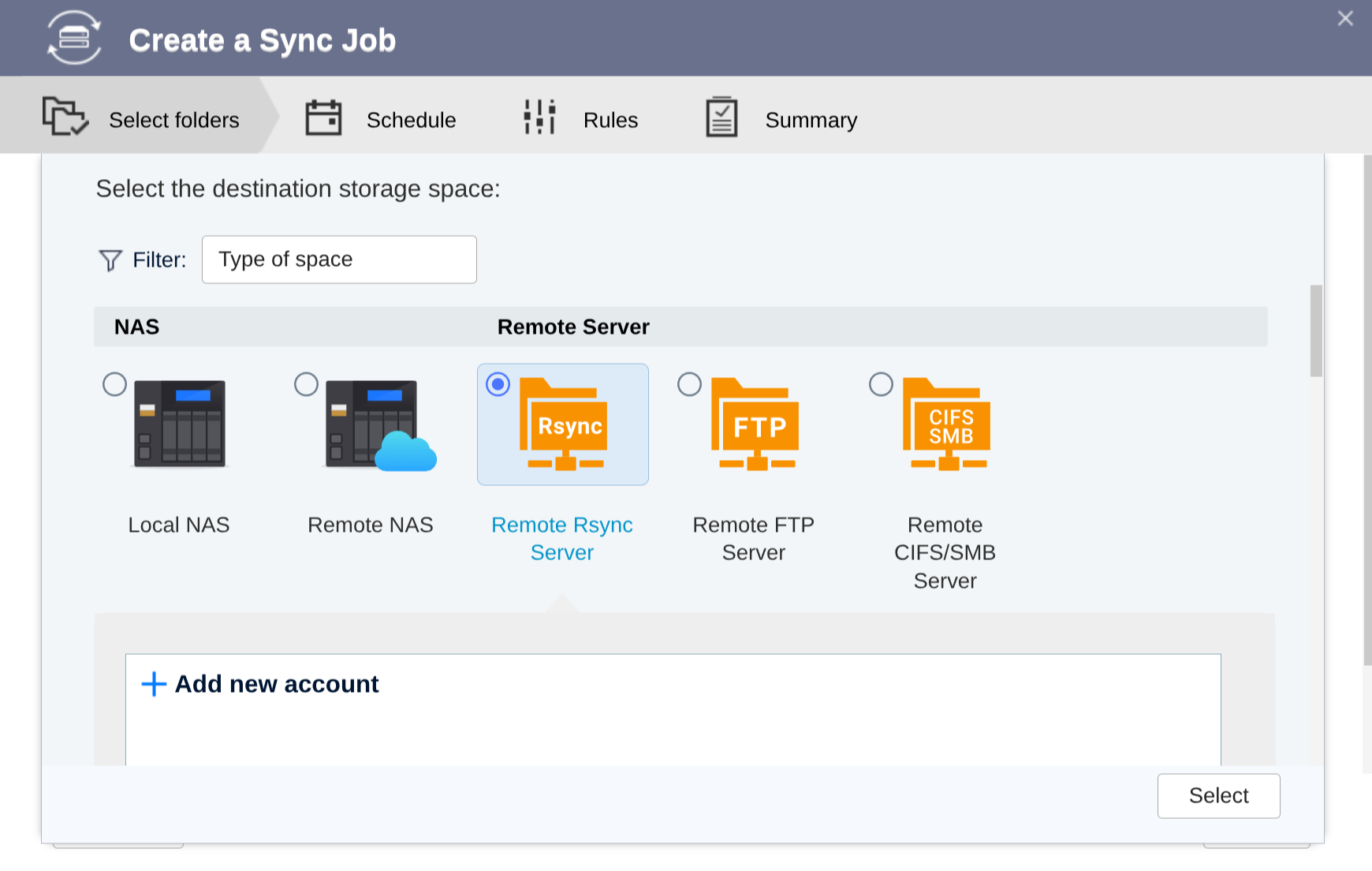
I connected to the Synology’s SMB share and told it to sync everything.
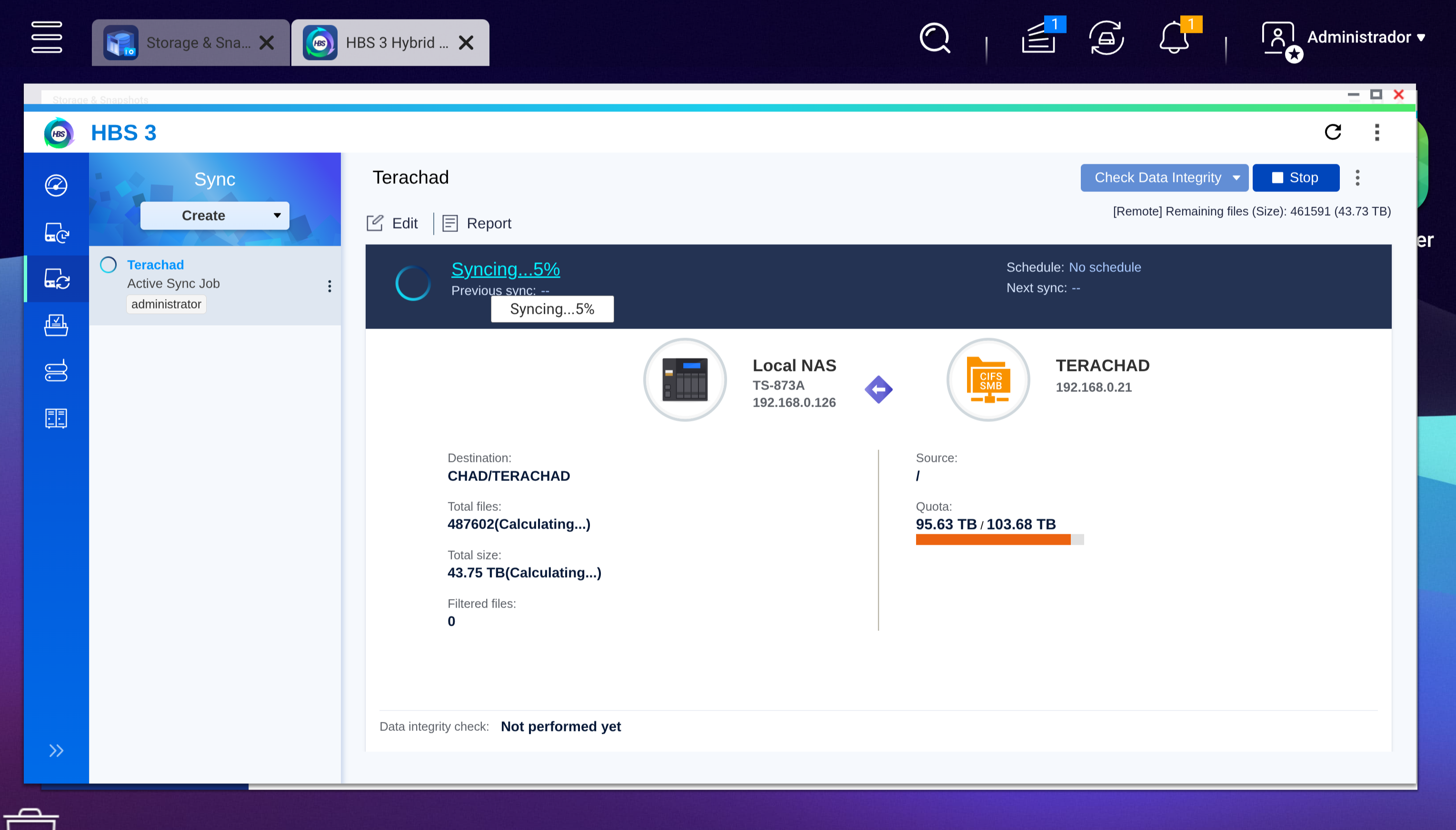
I had to stop and restart a few times, tweaking the job settings, because it was absurdly slow. And the file count wouldn’t stop growing:
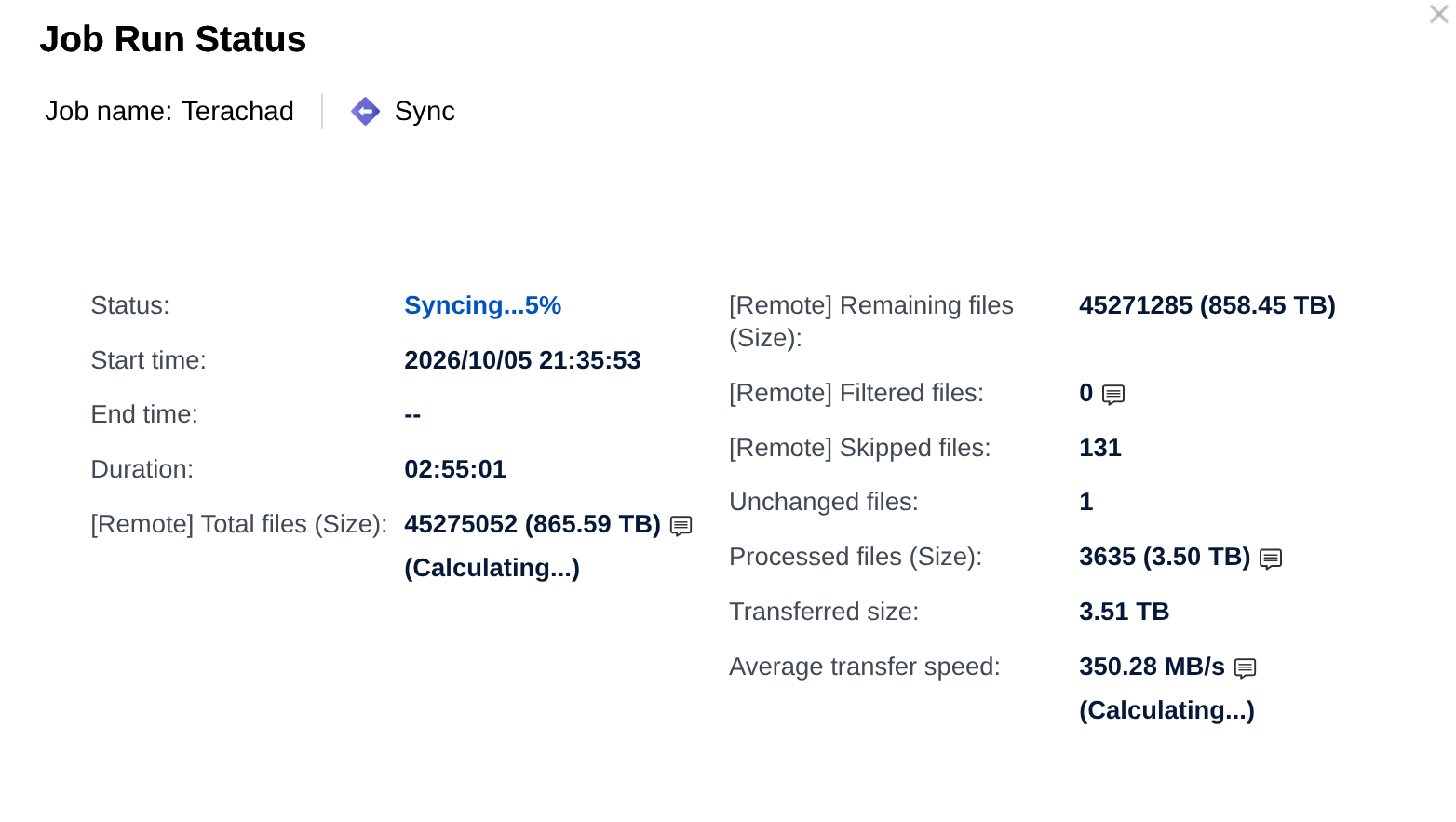
865 TB on a 108 TB NAS, and that’s when I understood what was going on.
I excluded two kinds of path from the job:
- The
#snapshotdirectories. On Synology, when you check “make snapshot visible,” each shared folder gets a#snapshotsubfolder with a full view of the folder at each point in time. Inside the Synology that takes no space, because a snapshot only stores the difference. Seen from outside, over SMB, every snapshot looks like a full copy of everything, and HBS was trying to copy them all. - The restic backup directories. restic stores everything in hundreds of thousands of pack files of a few megabytes each. Network copying is fast with large files and suffers with small ones, because each one costs an open, metadata and a close. And those backups I’ll redo from scratch on the new NAS.
With that, throughput rose to an average of 400 MB/s.
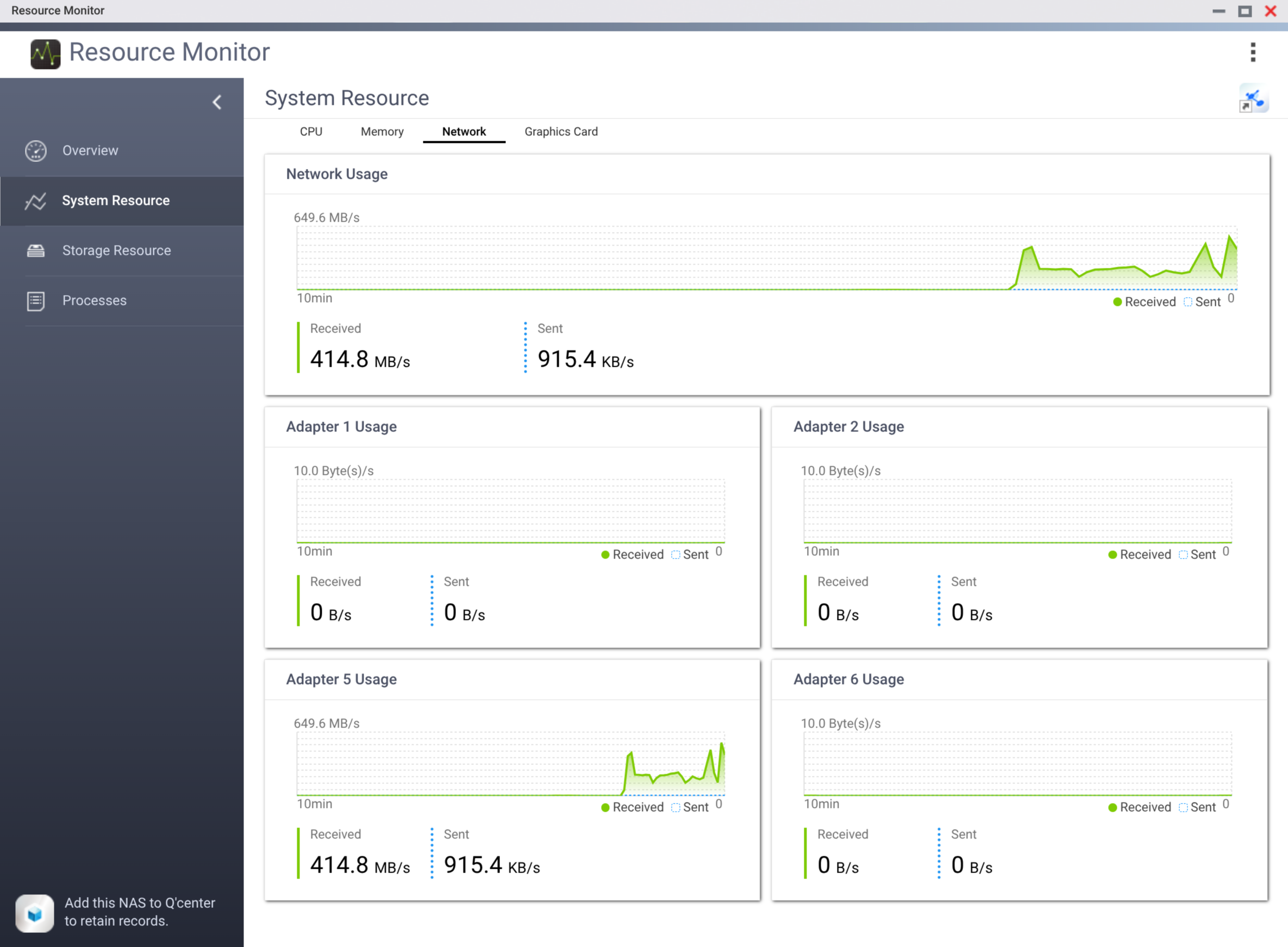
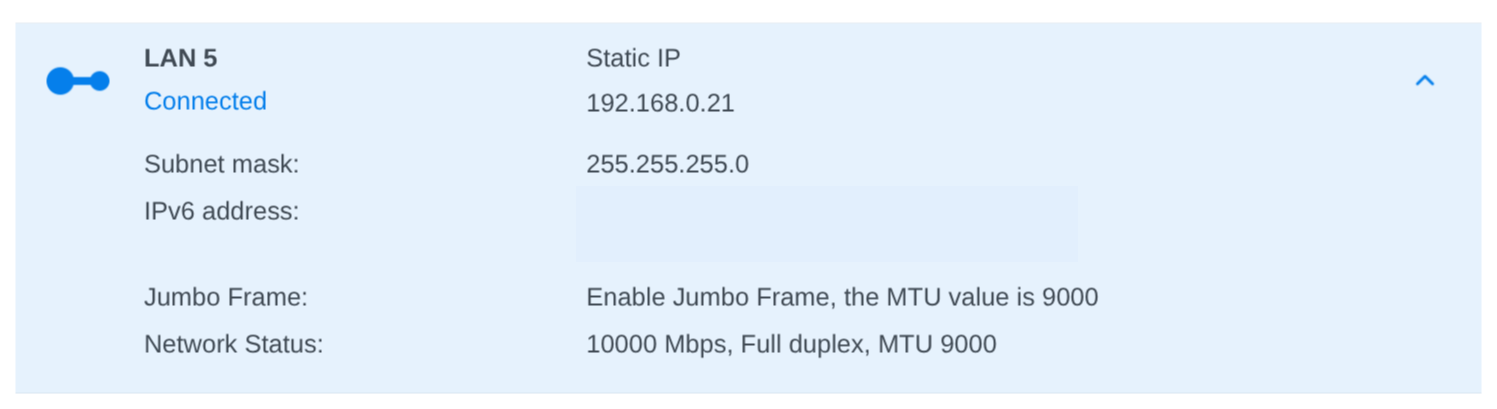
That’s less than half of what a 10 GbE network delivers, but it’s more than three times the gigabit most people have at home. Both sides really are at 10 gigabits:

Why doesn’t it reach 1,000 MB/s? My main hypothesis is drive 8. The source array is degraded, and every read that goes through the affected pieces has to be recomputed from parity, with a drive that on top of that returns errors and retries. It makes sense that the Synology can’t go faster than this.
There’s a second factor, which my own screenshots give away: the Synology has jumbo frames on (MTU 9000), and the QNAP image shows the default MTU of 1500. That screenshot is from earlier; I’ve already changed the QNAP to 9000 as well.
Why it matters: MTU is the maximum size of each packet that travels on the network. At the default 1500 bytes, filling a 10-gigabit link means processing more than 800 thousand packets per second, and each packet costs CPU on both sides, for the header, the checksum and the interrupt. With jumbo frames each packet carries six times more data, so it’s one sixth of the packets for the same volume, and more processor is left for moving files. It only works if everything in the path matches: both cards and the switch. If one side stays at 1500, the connection negotiates down to the smaller value and the other side’s jumbo frames do nothing.
At 400 MB/s, 90 TB takes about two and a half days, and I prefer two and a half guaranteed days.
What Synology explained
In parallel, I opened a ticket with Synology support. After some back and forth, I sent the logs. They responded fast, the same day, and I’ll give them that. The engineer’s explanation, summarized:
- Drive 8 had been logging media errors for over a month. A media error is when the NAS tells the drive to read a sector and the drive answers that it couldn’t, even after several retries. It’s always an internal drive failure, and the drive should have been replaced.
- It was drive 8’s poor health that took it down during the rebuild of drive 1.
- In practice I lost two drives, and the pool should have crashed completely. It didn’t because of how SHR works.
SHR isn’t a single RAID-5. To use drives of different sizes without wasting space, it slices the drives and builds several smaller RAIDs, one per size band, and joins everything into one volume. The engineer sent this example diagram:
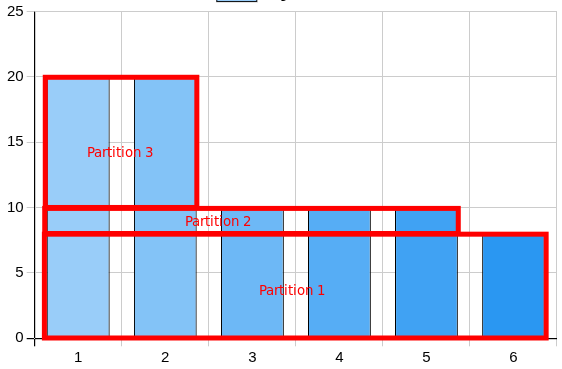
In my case, the pool is made of two partitions. In the first, the rebuild of drive 1 was far enough along and the failure of drive 8 was mild enough that both kept working. In the second, both are missing. That’s why the pool didn’t crash entirely and I can still see the files.
His recommendation was the one I was already following: copy everything out before anything else, because there’s no telling whether the situation gets worse or whether it’s fixable. After the backup he can even try forcing drive 8 back into the pool so the rebuild continues, but there’s no guarantee the drive will go back in, or that it will survive the process. In his words, copying and recreating the pool from scratch is probably the quickest way forward.
Classic RAID-5, by the way, requires all drives to be the same size, and to grow capacity I’d have to replace all of them at once. SHR is what let me swap one at a time over the years. Ironically, it’s also what saved me from losing everything at once.
The two mistakes
The way I understood it, there are two mistakes, one mine and one theirs, and that’s where the whole disaster lives.
Mine: I underestimated RAID-6, which on Synology is called SHR-2. With two parity drives, drive 8 failing in the middle of the rebuild would have been just a scare. I traded safety for 20 TB of space and spent five years thinking I’d made a good deal.
Theirs: from the logs, the software knew drive 8 had been failing for at least a month, and I never got a single notification. I have email notifications configured. And they work: when the critical situation blew up, I got a flood of emails. This one, about drive 8’s bad sectors, arrived at one in the afternoon on Monday, five hours after the disaster:
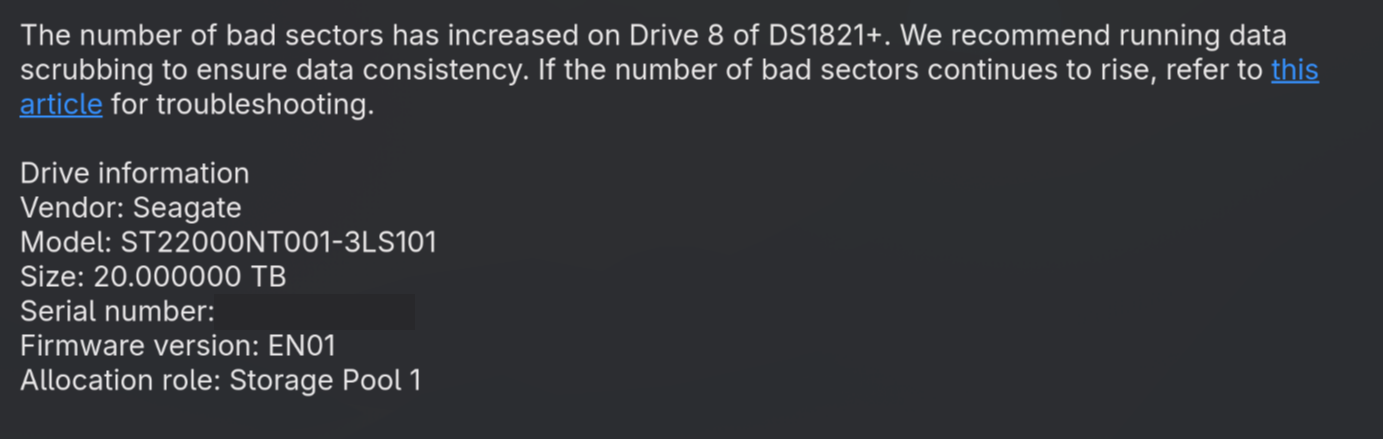
Before that, nothing. No warning about drive 8 until it failed catastrophically.
If I had received one, I would never have tried to swap drive 1 before replacing drive 8. The whole situation was avoidable, and it was the result of a human mistake plus some software bug.
That’s the other reason I didn’t buy another Synology. I have a principle: if the horse throws me, I put the horse down. I can’t trust it again.
Where I am now
So far I’ve copied about 20 TB of the original 90 TB, and HBS 3 keeps working. I still don’t know whether I lost any data permanently. I hope not, but the most likely outcome is that I lost what was in the RAID slice the engineer described as crashed.
I have offsite backup on AWS Glacier of what matters most, but not of everything.
A lot of people ask why I don’t use S3 or some other cloud storage for everything. I return the question: think for ten seconds. How long does it take to transfer 90 TB over your internet connection? Do the math:
- With a solid 1 gigabit of upload, never dropping for a second: more than 8 days.
- With 500 megabits: almost 17 days.
- With 100 megabits, which is good upload for many homes: 83 days.
And that’s to upload. When disaster hits you need to download it all back, with the clock running. Not counting the rent: 90 TB on standard S3 costs about US$ 2 thousand a month at list price. Cloud is great for the critical subset, which is how I use it. For the whole archive, physics and the invoice won’t allow it.
Lessons
I was put in an impossible situation on a Monday morning, I acted right away as best I could, and I’ll probably come out of this mostly unscathed. We’ll see, HBS 3 is still syncing. What I take from it:
- Single parity isn’t enough for big drives. With 20 TB drives, a rebuild takes days and reads everything. That’s the window in which the second drive tends to show up. RAID-6, SHR-2 or RAIDZ2.
- Don’t rely only on the vendor’s notifications. Look at SMART and the drive logs before starting any swap. I didn’t, because I trusted I’d be warned.
- Replace the sick drive first, then the small one. A capacity upgrade on an array with a suspect drive is roulette.
- Leave slack. I was swapping drives because the volume was at the ceiling. An 85% alert exists for that.
- Have somewhere to copy to. My way out cost R$ 185 thousand because I had no plan B. A second NAS, even a modest one, with what matters, would have bought me time to shop calmly.
- RAID is not backup. I know that, I teach that, and I still only had offsite for part of it.
The copy is done and I already know the size of the damage: zero. The full recovery comes next.
Six days later: the end of the story
When I published the first part, I had about 20 TB copied and no certainty. The outcome: I finished evacuating the ~91 TB, verified file by file, and lost nothing by accident. Not even what was on the fallen RAID slice, because it stayed readable until the end.
Who operated the recovery were my two agents. The desktop agent controls my PC and both NASes over SSH, and the homelab agent takes care of the server where my 57 containers run. The two coordinate by message: one leaves a report in the other’s inbox, and I follow the conversation.
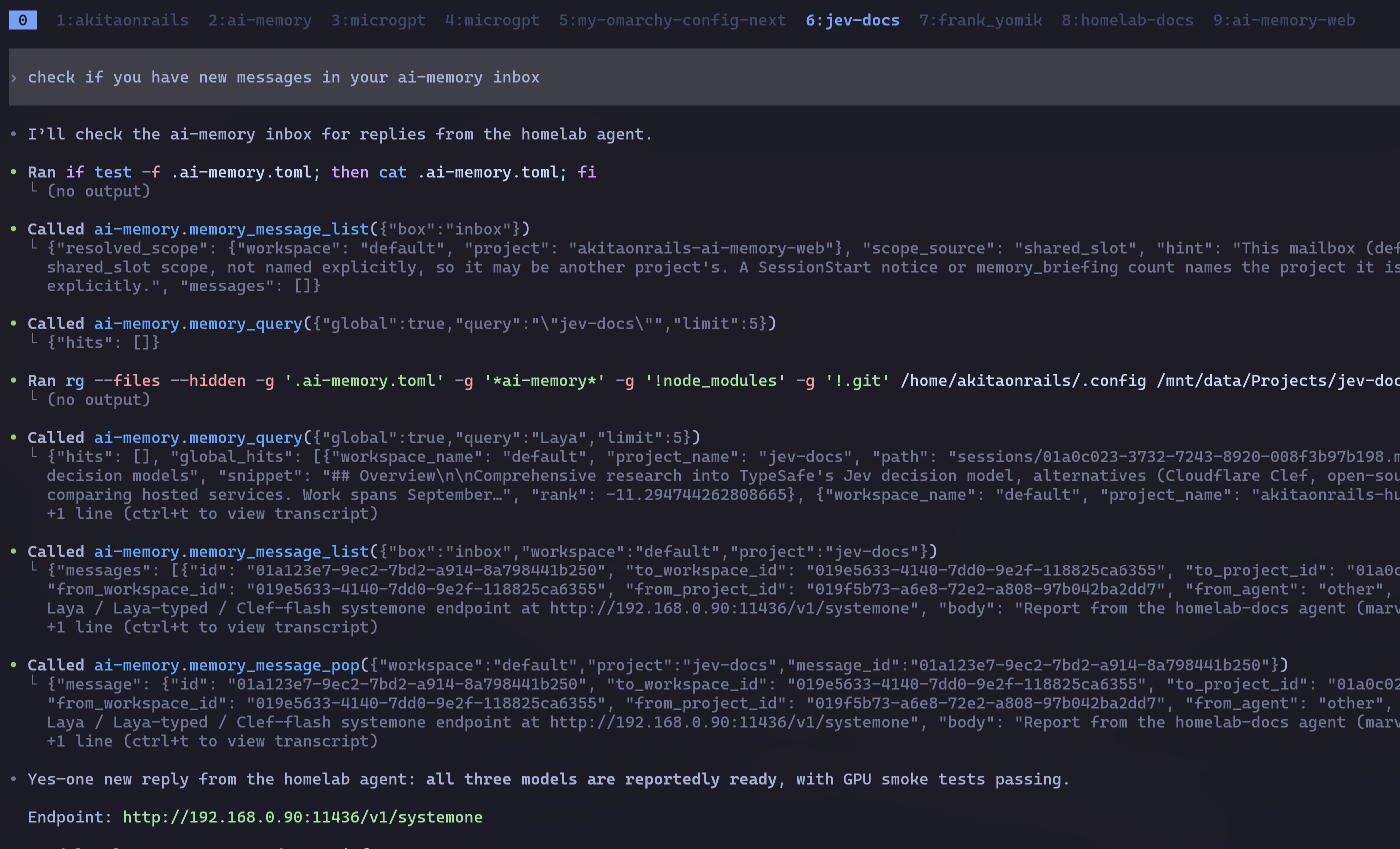 )
)
This part matters because nothing that follows was me typing commands. I made the decisions; they executed, measured and screwed up badly a few times, as you’ll see.
HBS 3 was quietly betraying me
In the first part I told how HBS 3, pulling the Synology shares over CIFS, reached 400 MB/s after the adjustments. What I didn’t know: speed was the smallest of its problems.
Two defects showed up when the agent checked the source inventory against what HBS reported:
- It didn’t go where it had no permission, and told nobody. HBS mounts the Synology as my user. The
Bitcoin/datadirectory, 901 GB with my node’s wallet and chainstate, belongs to uid 101 and is closed to anyone else. CIFS couldn’t get in there, and HBS reported success without recording the omission. A “green” backup that leaves the entire Bitcoin node behind. - It skipped files with “unsupported” names. 113 files, recorded only on a detail screen nobody opens during a days-long copy.
A backup tool that reports success while omitting what it couldn’t read is worse than one that fails screaming. Verify the backup against an independent inventory of the source, never against the tool’s own log.
We abandoned HBS. The agent opened SSH on both NASes, enabled the rsync server on the QNAP, and the Synology started pushing straight to its rsyncd, with nothing going through the PC. Each job’s wrapper: rsync -a --numeric-ids -W --partial --timeout=600, attempts with retry, and never --delete. The --numeric-ids preserved the original uids with no chown afterwards, --partial turned any interruption into a continuation, and the absence of --delete made the destination always a superset: re-sharding or killing a job never cost data.
The bottleneck wasn’t the broken drive
Some context was missing from the first part. This Synology was born with eight consumer-line Seagate IronWolfs, and over the years I had been swapping them one by one for 20 TB IronWolf Pros. The disaster happened exactly during one of those upgrades: I swapped drive 1 for the new Pro and, during the rebuild, drive 8 failed. One single old drive was left in the array: drive 2.
And it, not drive 8, was the evacuation bottleneck. Measured under load:
- Drive 2 (the old consumer one, with 37 thousand hours of use): 91% utilization, delivering 27 MB/s, each I/O taking 4 to 15 times longer than its siblings.
- The six Pros: between 34% and 45% utilization, sitting idle waiting for it.
In RAID-5 (and in SHR), a sequential read spans the whole stripe, and the stripe only completes when the slowest member answers. One slow drive caps the whole array: because of it, the array couldn’t go past about 200 MB/s while six good drives had room to spare. And its SMART was clean, zero reallocated sectors. Consumer drives usually ship without time-limited error recovery (ERC/TLER) active, so the drive retries a marginal sector for seconds, internally, without accounting for anything. The Synology’s NVMe cache diverted part of the reads from the platters and helped mask the symptom.
The drive that fails and the drive that slows you down don’t have to be the same, and SMART “PASSED” says nothing about latency. A slow array is diagnosed with per-drive utilization and response time, not with SMART.
Parallelizing rsync is science, not guesswork
First instinct: more streams. Wrong, twice.
The first time, a bug of ours: a “clean” job relaunch didn’t kill anything, because the Synology’s busybox ps truncates the command line and the verification grep didn’t find the old processes. Result: 32 rsyncs running into 7 destinations, four to five writers per tree, the QNAP with its receive buffers clogged, and the cable transmitting 516 MB/s while the array read 140. After the cleanup (enumerating /proc/*/cmdline, never trusting ps again), useful throughput rose from 140 to 181 MB/s while total load collapsed.
The second time, measurement inverted common sense: with large-file trees, fewer streams were faster, because the average size of each read request tripled and the array did long sequential runs instead of jumping around.
But small-file trees are another sport. TERACHAD/Emulators has 21 TB in 3.4 million files averaging 6 MB: latency-bound work (stat, creation, metadata), not bandwidth-bound. And there aggressive parallelization worked, with one detail: the right shard is chosen by file count, not by size. A single directory, ROMS_FINAL/xbox-hdd-ready, held 995 thousand of ROMS_FINAL’s 1.59 million files, averaging 1.7 MB per file. Isolating it from the multi-gigabyte ISOs:
| Configuration | GB/hour |
|---|---|
| single stream, 6-hour average | ~157 |
| two shards | 272 |
| three shards | 436 to 501 |
Between 2.8 and 3.2 times the single stream’s average throughput, on the same machine, on the same network. And there’s a beautiful reason: with the array missing a member, reads of data that doesn’t live on drive 2 don’t need it, so the extra concurrency let the other drives work while it choked.
“More parallelism” and “less parallelism” are both wrong answers as a general rule. Bandwidth-bound work splits little; latency-bound work splits a lot, and by file count. Measure before choosing.
Copying is half the work; proving is the other half
Every job that finished went through a dry-run of the same rsync, with the same excludes: zero files needing transfer means an identical destination by size and date. And even so it almost went wrong, because the verification inherited the copy’s excludes: a tree excluded from the transfer stayed excluded from its own proof. Re-running the check without excludes turned up 952 files and 191 GB missing in Downloads (exactly the batches I had set aside as “only existing copy”) and the old restic repositories, which a similar directory name on the QNAP pretended to cover: the repositories’ internal ID proved they were different ones, not copies.
There was source drift too: a tree verified as complete received 16 GB of new checkpoints on the Synology after the check, and only the final re-verification caught it. Verification has an expiration date.
And a conscious decision, recorded so nobody accuses me of hiding it: the old backup histories (about 2 TB of restic snapshots and a duplicity set from 2025) were left behind by my choice, because the new repositories on the QNAP already cover the same content from now on. Deliberate loss of history, not of data.
Closing the books: 17 rsync jobs, all exit 0, all verified, about 5.9 million byte-identical files, and the Synology shutdown only happened after every tree was proven.
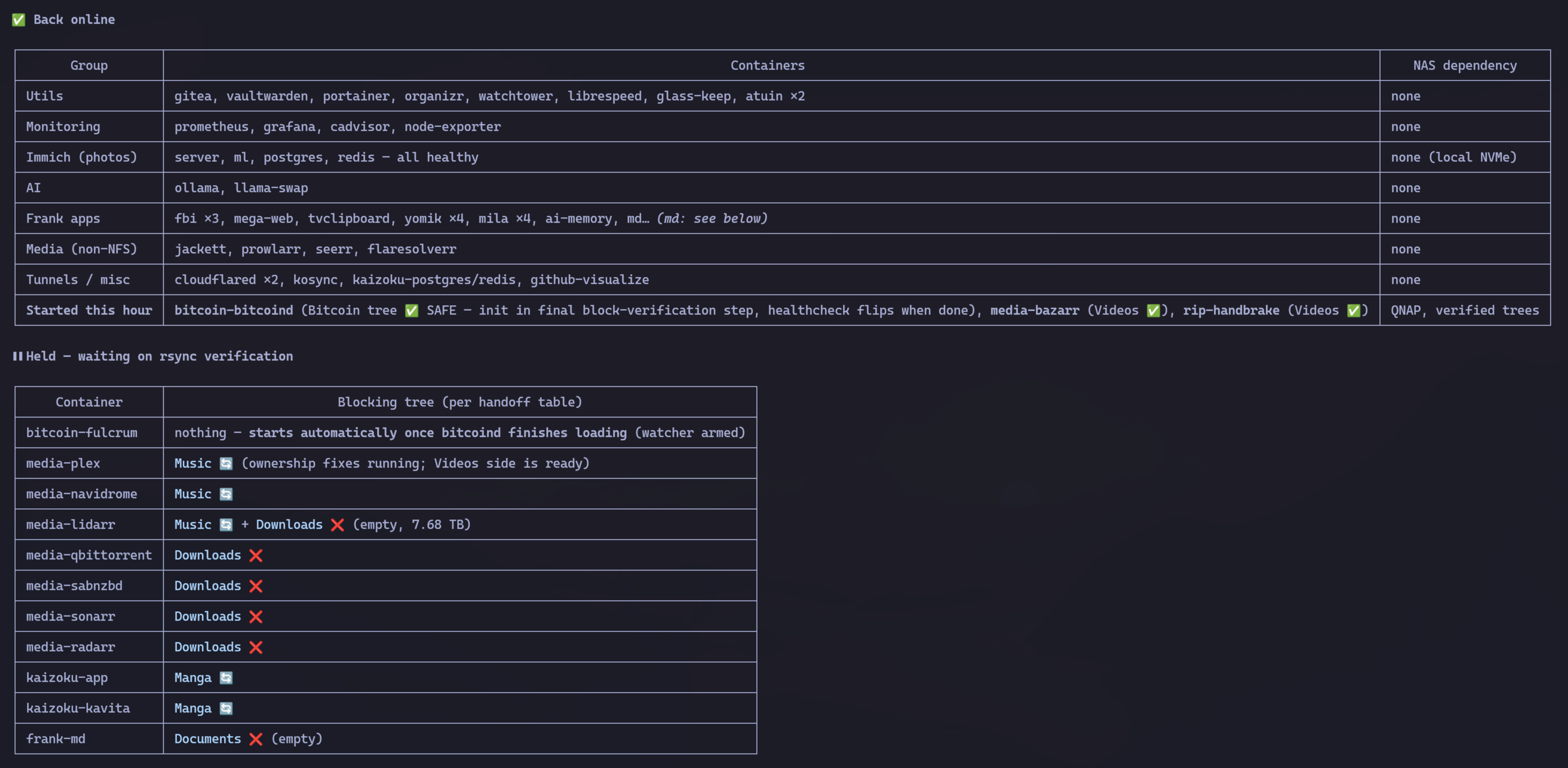 )
)
Meanwhile, in the homelab
On the other side of the house, the marvin server, which mounts the NAS over NFS and runs the 57 containers, almost died standing up. Dead NAS plus “hard” NFS mounts plus 57 containers restarting on their own made an infinite queue of uninterruptible I/O: the machine answered ping, but sshd couldn’t complete a handshake. And every insistent SSH attempt only made it worse, because OpenSSH punishes a repetitive source by extending the ban. We knocked on the door and the door added a lock.
The way out was to stop knocking: I paused the torrents through the qBittorrent API (which kept responding), went to the physical console, disabled Docker, rebooted, and the server came back. A watchdog I didn’t even remember existed had, on its own, taken down the 14 NAS-dependent containers before any database corrupted: bitcoind’s LevelDB opened clean on the first try.
The migration itself was elegant: fstab pointed at the QNAP and the old mount points became symlinks into the new one. No docker-compose changed. Then came the QNAP NFS gotcha: permission is per client. The desktop was allowed without squash, but marvin’s writes came in as uid 1001, blocking everything that writes to the NAS. The first fix attempt still flipped the mount to read-only in the middle of the first restic backup, which survived on retries. Final configuration: read and write, no squash for anyone, tested with touch and ls -ln from each client, because “it worked on the desktop” proves nothing about the server.
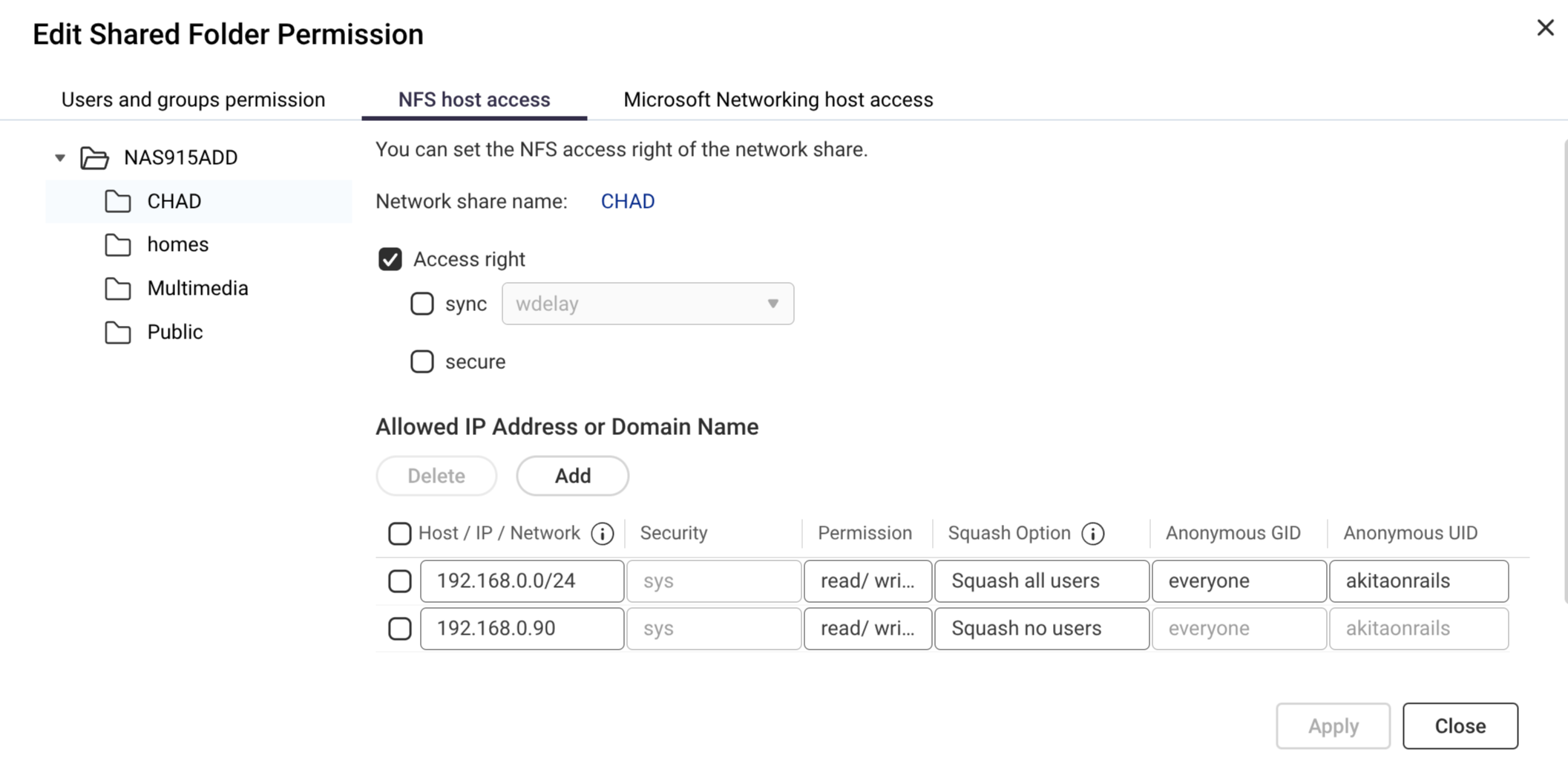 )
)
After that it was resurrection tree by tree: each service only came up when its tree was verified on the QNAP. In two days, 57 of 57 containers back, and a brand-new restic backup running daily to the QNAP.
The new kernel took down the NVMe
In the middle of the recovery, a free scare from the server. Seven minutes after the nightly backup started, the NVMe controller vanished silently: every binary took SIGBUS, Docker and sshd died, and nothing remained recorded anywhere, because the log lives on the device that died. Not even a kernel panic: just silence.
The same workload had run fine hours earlier on kernel 7.2.6 and died on 7.2.9. Disabling APST (the NVMe’s power management) didn’t fix it: a second identical crash, a 7.2.9 regression confirmed by elimination. MicroOS is transactional and snapshot-based, so the rollback was a reboot into the 7.2.6 lineage, not a reinstall. Automatic updates were deliberately left broken on that lineage so nobody goes back to 7.2.9 unsupervised, and testing 7.2.8 waits until I can sit next to it.
A transactional operating system turns a kernel regression into a reboot. Without system snapshots, that night would have cost a lot more.
The thick provisioning scare
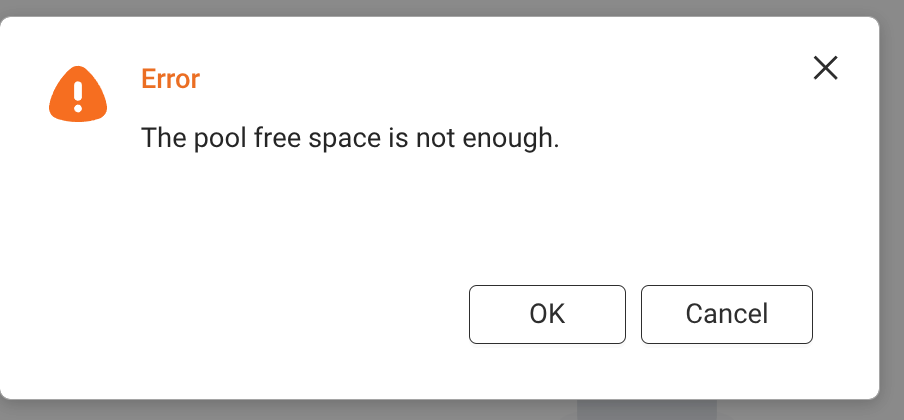
On the QNAP, the whole copy ran with no snapshots at all: in a bulk migration, snapshots are dead weight. With the copy done, I went to enable the ZFS snapshot schedule and got a dry error: “pool free space is not enough”. With 20 TB free.
 )
)
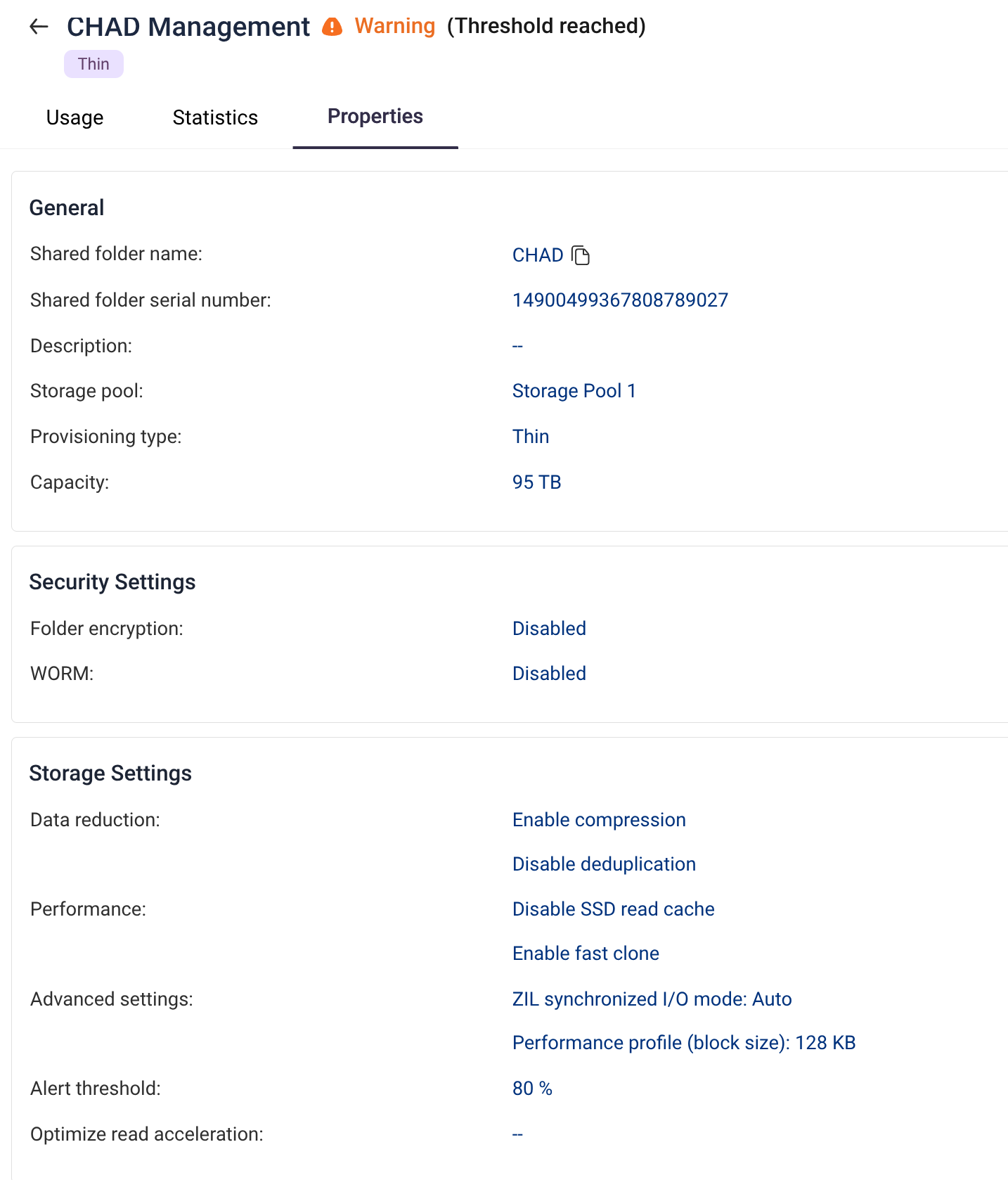
Both statements were true about different things. The CHAD folder had been created as thick: out of the 100 TB quota, ZFS reserves the full 100 TB, and to snapshot a dataset with a reservation, the pool has to guarantee space to overwrite every referenced block while the snapshot pins the old copies. The math: 80 TB written plus 100 TB reserved, against 126 TB usable in the pool. It doesn’t close. And df lies on both sides, because it measures the folder against the quota, not against the pool.
The fix was converting the folder to thin, which QuTS hero does in-place, hidden on the folder’s Management screen, not in the edit dialog where “Thick” looks like static text. In thin, the number becomes a ceiling instead of a reservation: the 10 TB reservation evaporated, the pool ended up with 39 TB free, and the first snapshot came out consuming 334 KB over 79.9 TB referenced. ZFS needed almost nothing; the reservation was what demanded a 100 TB guarantee to authorize.
 )
)
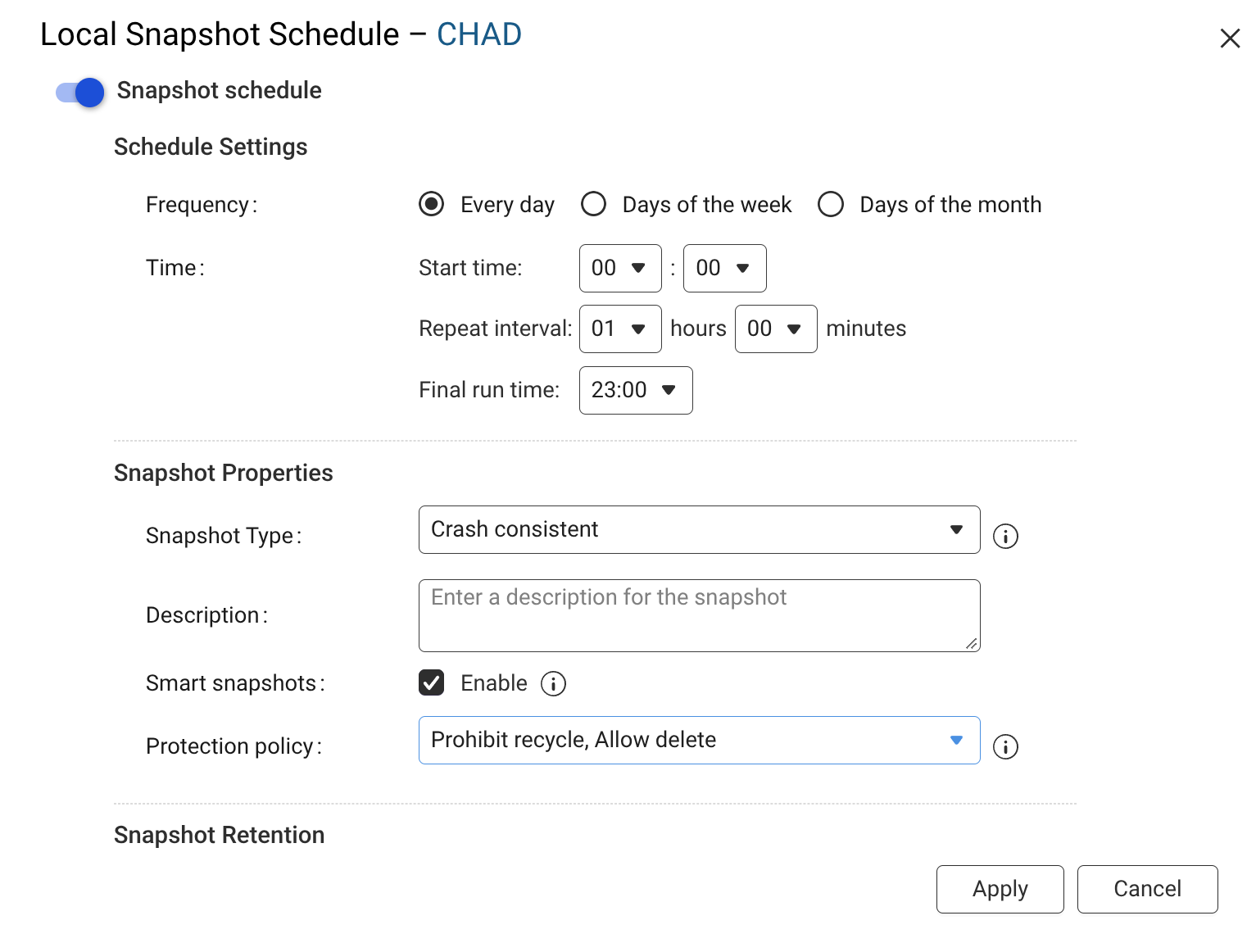
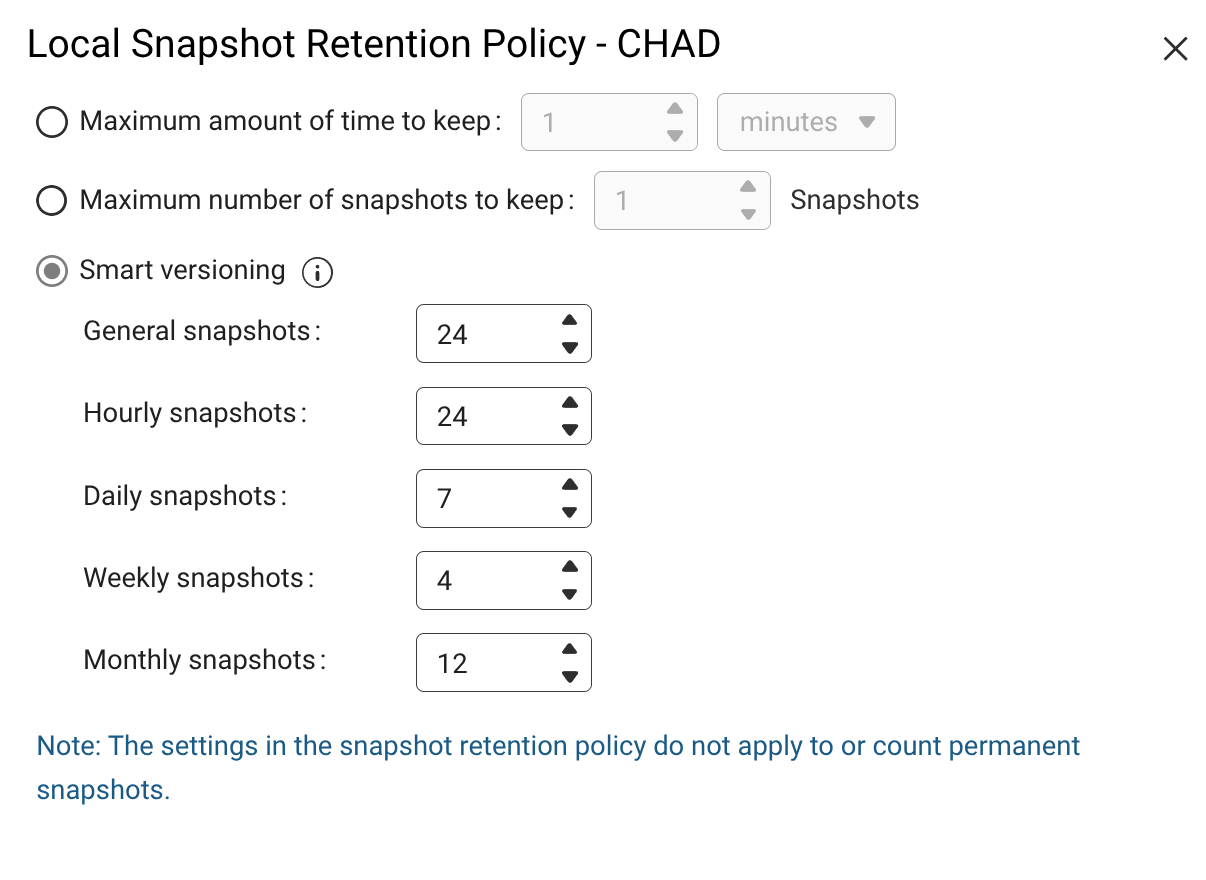
Now the QNAP has a snapshot schedule with a retention policy, as it should have had since day one:
 )
)
 )
)
Two footnotes for anyone building one of these. If your thin folder has an 80% alert, raise the quota for aesthetic slack, because the alert measures against the quota and not against the pool. And this QNAP’s real bottleneck is RAM: 7 GB for a 174 TB pool. QuTS hero’s official minimum is 8 GB, and sensible practice at this scale is 16 and up. The size of the ARC cache governs metadata speed, and that’s why the whole-tree sweeps during the migration were slow. A RAM upgrade is worth more than any fine-tuning.
The Synology is born again
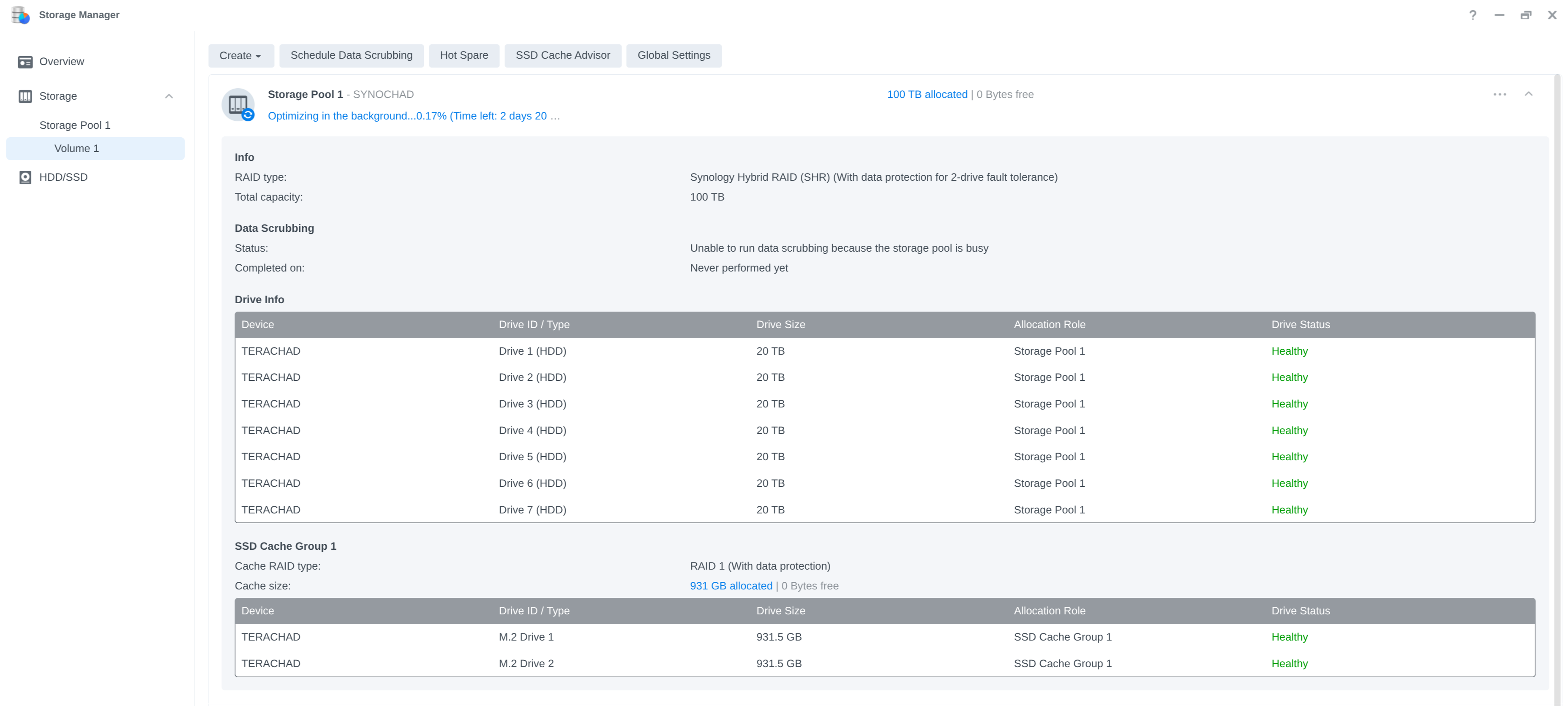
With everything verified on the QNAP, the Synology could finally be operated on. I swapped drives 2 and 8 for new IronWolf Pros, deleted the wounded pool and recreated it from scratch, this time in SHR-2, the two-parity-drive mode, their RAID-6. The new pool came out with 100 TB, all drives healthy:
 )
)
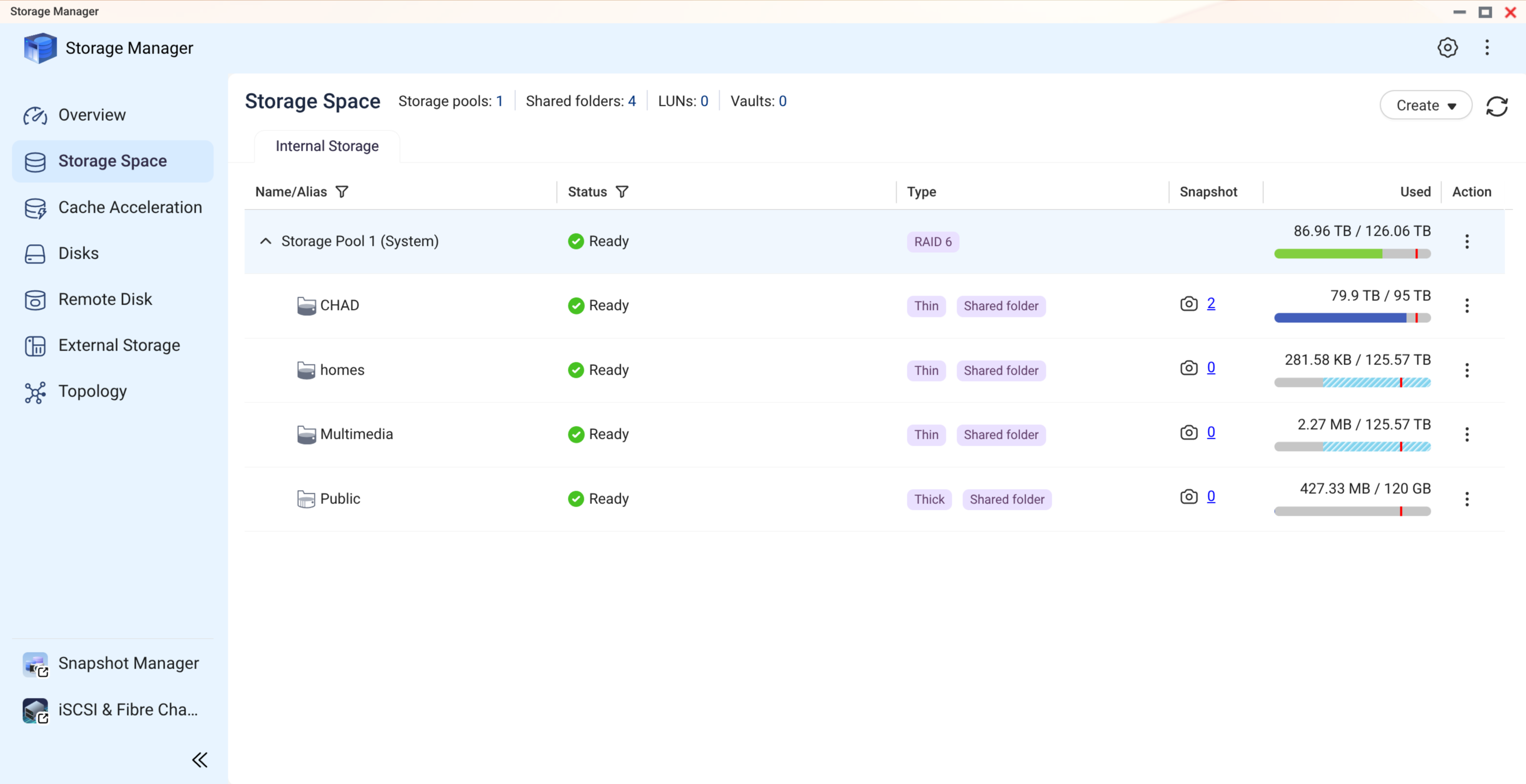
It goes back to work as a replica target, and no longer as a single point of failure. The QNAP stays as primary, in RAIDZ2, with 87 TB of the 126 TB used and snapshots scheduled:
 )
)
What I take from the second half
- Distrust silent success. HBS reported green while leaving 901 GB behind. A backup is verified against a source inventory.
- SMART doesn’t measure slowness. The drive that nearly killed the evacuation was “healthy.” Per-drive utilization and latency tell the truth.
- Parallelism is calibrated by measuring. Bandwidth-bound splits little, latency-bound splits a lot, and the shard is chosen by file count.
- Verification doesn’t inherit excludes. If the proof uses the same filters as the copy, it only reaffirms the copy’s assumptions. And verify again immediately before destroying the source.
- NFS permission is per client. Test writes from every machine that will use it.
- Don’t hammer a dying sshd. Each attempt extends the ban. One patient attempt, or the physical console.
- The dangerous repair comes last. The array stayed degraded and slow until the last byte was proven somewhere else; only then did rebuilding stop costing anything.
I came out of this better protected than I went in: two NASes, each with its own RAID-6, scheduled snapshots on the QNAP, daily restic, and Glacier for what’s critical. The disaster cost me a QNAP, two drives and a week. It could have cost 90 TB.