
Anyone who followed my YouTube channel or my Instagram already knows the saga with my NAS (my personal server), my Synology DS1821+ with almost 80 TB of space.
Every video from my channel, including the original source files, is there. That alone is terabytes. My whole Steam library is there, around 4 terabytes. All my old games, retro games too, including Xbox 360 and PS3 ISOs. That’s another 4 terabytes. My entire Ultra HD (4K BluRay) disc collection I ripped (made a backup), a few more terabytes. Right now I’m already using more than 50 terabytes.

Before anyone jumps in with opinions, yes, this isn’t for everyone. We’re talking about 8 drives of 10.9 TB, plus an upgrade of 2 drives of 20 TB, plus another 2 drives of 20 TB for backup in case one of them fails, plus 2 NVMEs of 1 TB each just for cache, plus a 10 Gbps network card. On top of that I keep several online copies of part of this content on Google Drive or Dropbox, and a full backup on Amazon Glacier, for the rare occasion my house catches fire, for example. I’m always prepared for any catastrophe.
Synology is one of the best home NAS brands. Yes, you can go way more sophisticated too, just build a real server, with CPUs like AMD EPYC ThreadRipper, using systems like TrueNAS. But that’s too much for me, I don’t feel comfortable maintaining it. Like I said, everyone has to know their own limits.
1o HD de 20TB terminou de se integrar ao RAID! Levou 2 dias inteiros!! Colocando o 2o HD ... de 4 😅 pic.twitter.com/Rv6dqBQr05
— Akitando.com (@AkitaOnRails) March 27, 2024
“Why not just keep everything online??” For most people that really is the easiest path. Like I said, my case is unusual. You do NOT want to have more than 50 TERAbytes online. My local wired network is 10 Gbps, my fiber internet is a measly 0.5 Gbps (500 Mbps). Streaming high quality video over the internet is horribly slow. I want everything in real time, and for that it has to be a local wired network.

That said, I built a second mini-computer, using an Intel NUC, connected to the same wired network as the NAS. It’s a Core i7, 32GB of RAM, 2.5Gbps ethernet, with the single purpose of being an empty Ubuntu server (it could be any Linux, I just picked the easiest one) whose job is to run Docker containers.

Even this little PC is overkill, way more than necessary. Many will comment that a Raspberry Pi 5 would be enough, and they’re not wrong. The best solution is the one you can afford and feel comfortable maintaining. Don’t try to copy anyone’s setup exactly, study what fits you best. And don’t waste time bikeshedding other people’s setups, build your own.
Anyway, I decided to share with you all the docker-compose files I’m using to bring up the docker containers on this server. Here’s the GitHub repository.
WARNING: don’t forget you need to edit the directories in the scripts. It’s configured to access my NAS network mount point, which is /mnt/terachad. Fix it to point to the right places on your machine.
WARNING 2: there are a lot of details I’m not covering in this article. This Reddit forum has more details and more discussion. Depending on your specific doubts or problems, it may be answered there.
So you don’t get lost in the middle of so many services, here’s the full picture of what we’re going to build, from the request all the way to watching on the TV, including the protection layers that keep malware and wrong downloads out of your library:

The idea is this: you request in one place (Seerr), the system finds it (Prowlarr and the indexers), downloads it with protection (qBittorrent and SABnzbd, plus the security layers), organizes it on the NAS (with subtitles from Bazarr) and you watch it on any screen (Plex and Navidrome). Let me start explaining the main ones one by one.
Portainer and Utilities

Here’s the snippet (see the full thing in the repository):
volumes:
  portainer_data:

services:
  portainer:
    image: portainer/portainer-ce:latest
    restart: unless-stopped
    volumes:
      - portainer_data:/data
      - /var/run/docker.sock:/var/run/docker.sock
    ports:
      - '9000:9000'
Portainer is a visual manager for the resources managed by the Docker service on your machine. Its purpose is more for me to visually “glance” and check if any container has a problem, or to test some quick little config tweak before editing the docker compose file.
In the utils-docker-compose.yml file there are other services like Organizr that I installed but haven’t stopped to configure yet, nor decided if I really want to keep. There’s Librespeed, which works like those internet speed tests, but for the local network. There’s Watchtower, which monitors image updates for all Docker containers, downloads them and automatically restarts with new versions, to keep all containers always up to date.
And to reach your local services from outside home, there are easy VPN options like Tailscale or ZeroTier, with little configuration. Yes, yes, before someone runs to the comments, you can set up OpenVPN from scratch, but trust me, these options are infinitely more “plug and play” and possibly safer, because everyone installs it, but few have the discipline to keep it maintained and updated all the time. These days I actually ended up moving to a Cloudflare tunnel to expose my services, but to get started, a Tailscale does the job really well.
MakeMKV and HandBrake
To build your personal movie library, legitimately, the correct way is to own BluRay or UHD discs and “rip” them. If that’s your case, I recommend buying disc reader models like the Pioneer BDR-XS07S. You have to be VERY careful because not every reader works.
Check the MakeMKV forum for the most recommended models. Some models got firmware updates that stop them from being used to rip BluRay. You need to find models that either weren’t updated, or that aren’t hard to firmware-downgrade. The ideal is to buy models everyone already knows work, and for that you have to dig through forums like that one.
MakeMKV, as the name says, “Makes MKV video files”, which is the good old Matroska video envelope format, one of the most versatile (because it supports multiple streams not just of audio, but of subtitles too).
Crash course: one thing is the codec that does the encoding of the video streams and audio streams. For example, H.265 or AV1 are video codecs. MP3 or AAC are audio codecs. Now we need to package these two streams (or more, if there are multiple dubs, for example) into an “envelope”, a “container”, a “file format”, like “.mp4” or “.mov” files. Matroska is a file envelope format that’s very flexible, allows multiple streams of everything, including subtitles, which is why it’s so widely used for sharing over torrent.

With this container, you can access the app’s graphical interface through the browser (it’s like a remote Windows client, like VNC). Just have the Blu-Ray reader connected via USB to your computer and it should find it. It will use the libredrive library to decrypt the Blu-Ray data streams, which is why the firmware versions being compatible (already cracked) matters.
Many people don’t know that we call everything “Blu-Ray” but in reality Blu-Ray is for movies encoded in Full HD, which is 1080p. The 4K versions (2160p) come as UHD, which is Ultra HD. The Blu-Ray case is usually blue, the UHD ones are black, you want the UHD ones whenever possible, of course. And I have a huge collection:
"onde eu tô gastando tanto espaço??"
— Akitando.com (@AkitaOnRails) March 26, 2024
Boa parte é fazendo Rip (backup) de todos os meus UHD (BluRay 4K). E isso porque estou re-encodando em bitrate menor depois de ripar kkkk pic.twitter.com/T1yPa6EIcV
The advantage of an app like MakeMKV is being able to decrypt the video stream and copy it bit by bit exactly as it is on the UHD, the best quality possible. This is what’s called REMUX (remuxing), which is extracting the stream from the container and putting it in another container without re-encoding. You’ve probably seen it in some torrent files, it’s the best quality. But it means it will use the same space as on the disc, a range of 50 to 80 GIGAbytes per movie. Every dozen movies will eat up almost 1 terabyte. Depending on how many movies you want to have, your free space will run out very fast.
To minimize this, we can recode or “re-encode”. It’s like when we take a RAW photo and re-encode it to a lower quality format, like PNG or even JPEG. If you know where to look, you’ll find the compression artifacts, but overall, it’s worth it. In my case, for example, encoding to H.265 10-bit, QP 15 Constant Quality.
The best option is to have an NVIDIA graphics card, with hardware video encoding support via NVENC, and use the best video encoding software: Handbrake. In my case, I pick the pre-configured Matroska H.265 MKV 4K60fps profile and switch it to use the NVENC encoder on my RTX 4090, which speeds up encoding several times over.

In docker compose, just like MakeMKV, I can bring up this app for browser access, like this:
  handbrake:
    restart: unless-stopped
    image: jlesage/handbrake
    ports:
      - "5801:5800"
    environment:
      - AUTOMATED_CONVERSION=0
      - HANDBRAKE_GUI=1
      - DARK_MODE=1
      - TZ=America/Sao_Paulo
    volumes:
      - "/home/akitaonrails/handbrake:/config:rw"
      - "/home/akitaonrails:/storage:ro"
      - "/mnt/terachad/Videos/BluRay:/watch:rw"
      - "/mnt/terachad/Videos/BluRayOptimized:/output:rw"
    devices:
      - /dev/dri:/dev/dri
Your PC has at least an Intel graphics card with hardware encoding support via QSV, or better, an NVIDIA one with NVENC support. In both cases, we give the container access to that by mapping the /dev/dri device. Without it, encoding goes through the CPU, and it takes orders of magnitude longer.
Keep in mind that software encoding is slower but has better quality than Intel QSV, which, despite being fast, always gives me inferior video quality. NVENC is the best of both worlds: excellent quality and very fast.
WARNING: in my case, I want the best quality possible, that’s why I back up UHDs, that’s why even over torrent I download BR-DISC, which is a UHD backup, and that’s absurdly heavy as I explained. So I manually redo the encoding to the Matroska H.265 profile, as I also explained.
Many people don’t want this hassle, so be sure to read the Reddit forum, which explains how to configure the next services to not download huge files like this. I won’t show it here, because it’s not my case.
QBitTorrent
No matter how much Blu-Ray and UHD you own or can buy, a lot of stuff doesn’t even exist on physical disc. In that case, your only option is BitTorrent. And yes, piracy is illegal, I am not encouraging piracy blah blah blah…

Every country has its own law, go research it. I’ll assume everyone knows what they’re doing and it’s not my problem. No point commenting about this, I won’t go on about it. The web is already stuffed with material about it, go to Google and search yourself.
The first thing we want is to install QBitTorrent, probably the best and most complete app to download torrents, which also has a web interface and works via Docker:
  qbittorrent:
    image: linuxserver/qbittorrent:latest
    restart: unless-stopped
    environment:
      - TZ=America/Sao_Paulo
      - WEBUI_PORT=8080
      - PUID=1000
      - PGID=1000
    volumes:
      - /home/akitaonrails/qbittorrent/config:/config
      - /mnt/terachad/Downloads/torrents:/downloads
    ports:
      - '8080:8080'
      - '62609:62609'
It’s important to remember to generate a random port in the QBitTorrent settings, as shown in the image below. Any port between 1025 and 65535 should work, but your network might block some port range in that interval, so you have to test. Search web forums, and be careful because a lot of online tips are already outdated.
You need to understand the minimum about networking, understand whether you’re behind a NAT, how to map external ports, whether you have an active firewall blocking ports, etc.
If the torrent isn’t downloading, “it might be” this. I put it in quotes because it’s only a possibility. So click “random” to pick another port, edit the docker compose config to map the new port and restart the container.

For some reason the saving management comes all set to Manual, it’s important to change it to automatic:

Another detail is to tell QBitTorrent to re-announce downloads to the trackers when the port changes. For that, enable the “Reannounce to all trackers when IP or port changed” option, otherwise downloads might not restart.

Now the most important setting in this whole section, and one I learned the hard way: block executables at download time. One fine day I found nine “completed” torrents in my library whose only content was a Windows executable of almost 1 GB, no video at all. And worse, the release name was squeaky clean, stuff like Reacher S04E07 1080p WEB H264-CAKES or Rick and Morty S09E10 ... EDITH.scr. You look at the name and swear it’s the episode. The .exe or .scr was hidden in the file inside.
A name filter doesn’t catch this, because the name is clean. The defense that actually works is blocking the extension at write time. In QBitTorrent, go to Options, Downloads, and enable “Excluded file names” with this list:
*.exe
*.scr
*.bat
*.cmd
*.msi
*.lnk
*.com
*.vbs
*.pif
With that, the malicious file simply never gets written to disk. The torrent “completes” with nothing useful, Sonarr or Radarr notice the import failed, dump that release into the blocklist and go looking for another one on their own. The malware never touches the disk, and you don’t even pass the garbage forward by seeding it. This is the first layer of defense, and the most effective.
Finally, how do I search for things to download? I can manually go to Google or DuckDuckGo or straight to sites like the PirateBays of the world and look for “.torrent” files or magnet links. To understand what that is, watch my video about Cryptography in Practice, where I explain everything about Torrent too.
QBitTorrent supports search plugins. It comes with a few enabled. In the bottom right corner, there’s the “Search plugins” button. We want to add the plugin that covers everything: the Jackett service.

Notice it wants a host named “jackett” enabled on port 9117, and for that we have this snippet in the docker compose:
  jackett:
    image: ghcr.io/linuxserver/jackett:latest
    restart: unless-stopped
    environment:
      - TZ=America/Sao_Paulo
      - PUID=1000
      - PGID=1000
    volumes:
      - /home/akitaonrails/jackett/downloads:/downloads
      - /home/akitaonrails/jackett/config:/config
    ports:
      - '9117:9117'
It brings up a service where we can access the web interface like this:

It’s a service that consolidates dozens of torrent search sites in one place, can test whether they’re online and, more importantly, provides an API key in the top right corner, which we should copy and edit into the QBitTorrent plugin config. With that you can search directly, getting results like this:

Notice in the right column that lists where these results were pulled from: it’s coming from the Jackett service.
An important heads-up, because this changed over time: Jackett here is for THAT, the manual searches you do yourself in QBitTorrent. Don’t fall for the temptation of wiring Jackett straight into Sonarr and Radarr. The automated part is going to be managed by Prowlarr, which I explain later, and it’s Prowlarr that feeds the services’ indexers. I keep Jackett running only for manual searches and, at most, as a bridge for some tracker Prowlarr doesn’t support natively, like RuTracker, which Prowlarr can consume through Jackett.
Radarr (Movies)
Searching manually works, but there are better ways: let a service do the searching and manage the download for you, and to download movies, we can use the Radarr service:
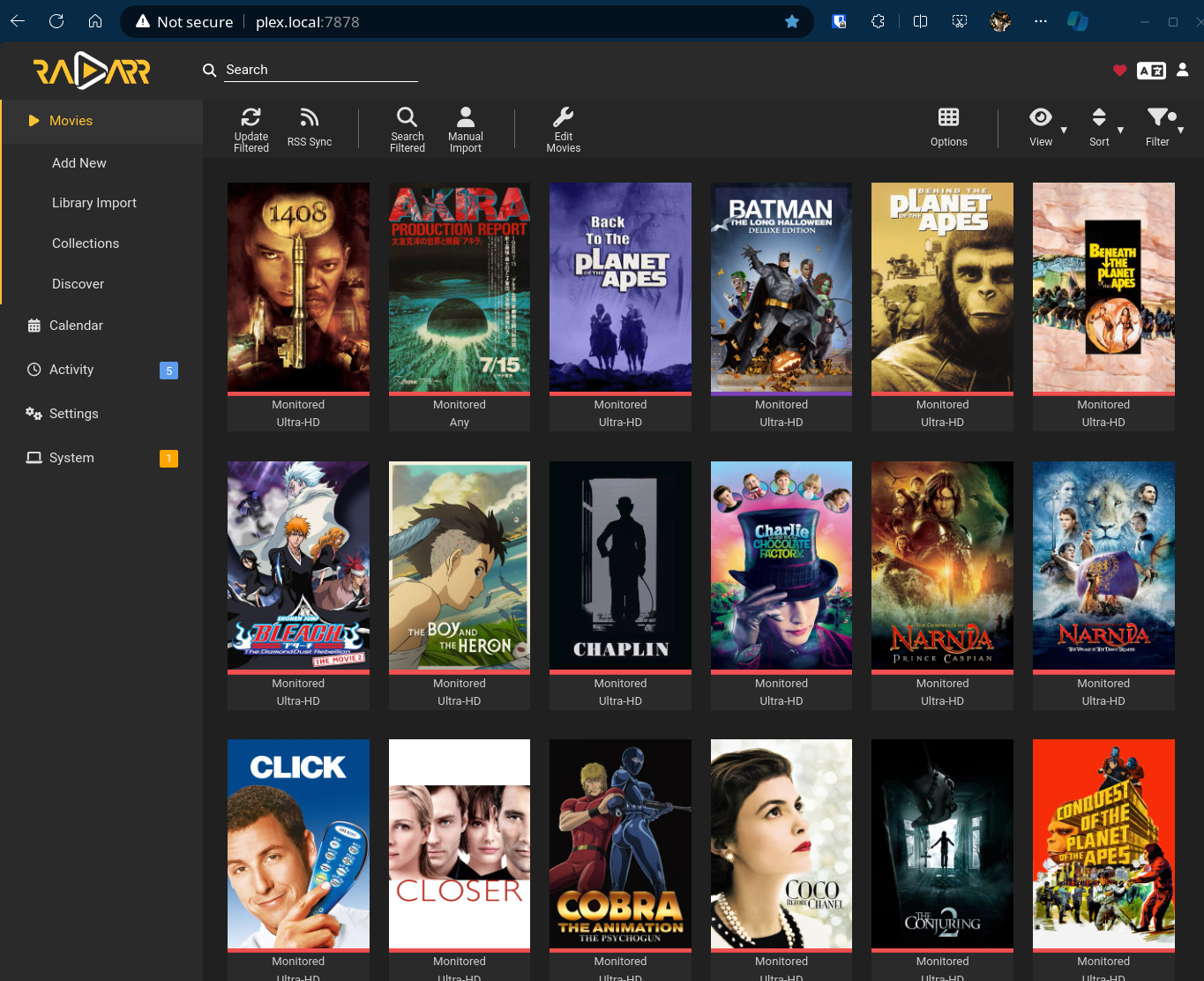
For that, we have this snippet in the docker compose:
  radarr:
    image: ghcr.io/linuxserver/radarr:latest
    restart: unless-stopped
    depends_on:
      - qbittorrent
    environment:
      - TZ=America/Sao_Paulo
      - PUID=1000
      - PGID=1000
    volumes:
      - /home/akitaonrails/radarr/appdata/config:/config
      - /mnt/terachad/Downloads/torrents:/downloads
      - /mnt/terachad/Videos/radarr/movies:/movies
      - /mnt/terachad/Videos/radarr/anime:/anime
    ports:
      - '7878:7878'
Notice I mapped different directories for western movies and anime movies, that’s a preference of mine, you can organize it however you want. As I warned before, don’t copy and paste exactly what I’m showing here: adjust the directories for your machine.
The main thing is that once it’s started, we can navigate the web interface to the “Settings” option. There you’ll find “Download Clients” and we can register the QBitTorrent web service:

I didn’t show it, but in the QBitTorrent settings there’s a place to set the admin password to access its API via web. Don’t forget to set it there and use the same password here. That way Radarr can control the movie downloads directly with QBitTorrent, without you having to get involved.

There’s a setting in Radarr I recommend doing right away, because it ships with a silly hole: by default, EVERY quality definition comes with a minimum size of zero. That lets a tiny fake file passing itself off as 4K slip through. I’ve been a victim: a Superman (2025) WEBDL-2160p.iso of 598 MB came in as if it were the movie and stayed showing in Plex for months. Inside the ISO was a .exe of 597 MB in disguise.
The fix is to go to Settings, Quality, and set a size floor on each quality definition. I use roughly this, in MB per minute of video:
- 720p (HDTV/WEBDL/WEBRip/Bluray): 3
- 1080p (HDTV/WEBDL/WEBRip): 5, Bluray 1080p: 8, Remux 1080p: 25
- 2160p (HDTV/WEBDL/WEBRip): 10, Bluray 2160p: 15, Remux 2160p: 50
It’s low enough to accept a good lean x265 encode, and high enough to refuse a “4K” under 1 GB, which can only be a trap. One annoying detail: Radarr has a bug where saving everything at once doesn’t persist the minimum size, so you have to save quality by quality, one at a time.
Sonarr (TV Shows)
Same thing as Radarr, but for TV shows, we have the Sonarr service:

This service is fantastic. It finds your shows, cross-referencing online databases with details like seasons, each episode’s name and lots of other metadata. So it can not only download old episodes, but also keeps a schedule to download shows that are still airing. Every week a new episode shows up on its own:

And same as Radarr: in Settings and Download Clients, I can register my QBitTorrent, then Sonarr handles downloading the episodes:

And to bring up the service, in the docker compose we have this snippet:
  sonarr:
    image: ghcr.io/linuxserver/sonarr:latest
    restart: unless-stopped
    depends_on:
      - qbittorrent
    environment:
      - TZ=America/Sao_Paulo
      - PUID=1000
      - PGID=1000
    volumes:
      - /home/akitaonrails/sonarr/appdata/config:/config
      - /mnt/terachad/Videos/sonarr:/tv
      - /mnt/terachad/Downloads/torrents:/downloads
    ports:
      - '8989:8989'
Same as Radarr, I mapped different folders for anime and non-anime, which is a matter of your organization preference.
Both in Sonarr and Radarr, there’s a setting that became mandatory for me after I started getting caught by traps: a Release Profile that blocks release names known to be booby-trapped. In Settings, Profiles, I keep a “Must Not Contain” list with terms like these:
BROADCAST
FULL HD
.scr
.exe
SODAPOP
REACHERSON
Each of these has a story. BROADCAST, SODAPOP and REACHERSON are groups that pack split RARs with a Sample/ folder that jams the import (I caught almost 60 GB of junk from a fake Welcome to Derry in one go). FULL HD is the naming signature of the ones carrying .exe. And .scr/.exe in the name is literal. A heads-up for anyone copying this: Radarr, under the hood, uses the same ignored field as Sonarr, even though the interface calls it “Must Not Contain”, so configure the same list in both.
There’s still a class no filter catches on its own: pre-air fakes. A Reacher S04E07 shows up with zero seeds for an episode that only airs next week. Sonarr doesn’t reject a release dated before the air date, so I clean those out by hand. The good news is that, with the QBitTorrent executable block from above, even when one of those downloads, it comes in empty and gets discarded automatically.
Downloads that get stuck
A classic everyday problem: the torrent gets stuck forever in “downloading metadata” or “stalled”, with zero peers, and Sonarr never gives up on it on its own. I’ve had an episode sitting behind a dead magnet for five days while the good release passed by, waiting for a turn that never came.
The solution I set up is a simple script running once a day (a cron or a systemd timer, doesn’t matter). It queries the Sonarr, Radarr and Lidarr queue via the API, finds the items stuck in “downloading metadata” or “stalled with no connections” for more than 72 hours, and removes them with a single command:
DELETE /api/v3/queue/{id}?removeFromClient=true&blocklist=trueThat deletes the dead download, dumps the release into the blocklist so it won’t grab it again, and the app goes after another source automatically. The trick is being careful to NOT touch a download that’s merely slow (under 72h) nor an item waiting for a manual import, otherwise you delete good stuff by mistake. The first time I ran it, it cleared out nineteen zombie downloads in one shot.
Prowlarr (indexer)
For both Radarr and Sonarr to know where to pull the show and movie torrents from, they need to search public indexers or trackers (or private ones, if you have good contacts, I don’t, don’t even ask). For that we have Prowlarr. This is the most important service of all, because if this one doesn’t work, nothing downloads properly.
It took me a while to reach a good configuration, but today I have a simple rule that solves it: Prowlarr is the only place that manages indexers. Sonarr, Radarr and Lidarr should NOT have any indexer registered directly, only the ones Prowlarr syncs. Every indexer I had registered by hand inside Radarr was a source of headaches, including a “Lime Torrents” that was exactly the one that served me that Superman ISO malware. I deleted them all and left only Prowlarr feeding the three.
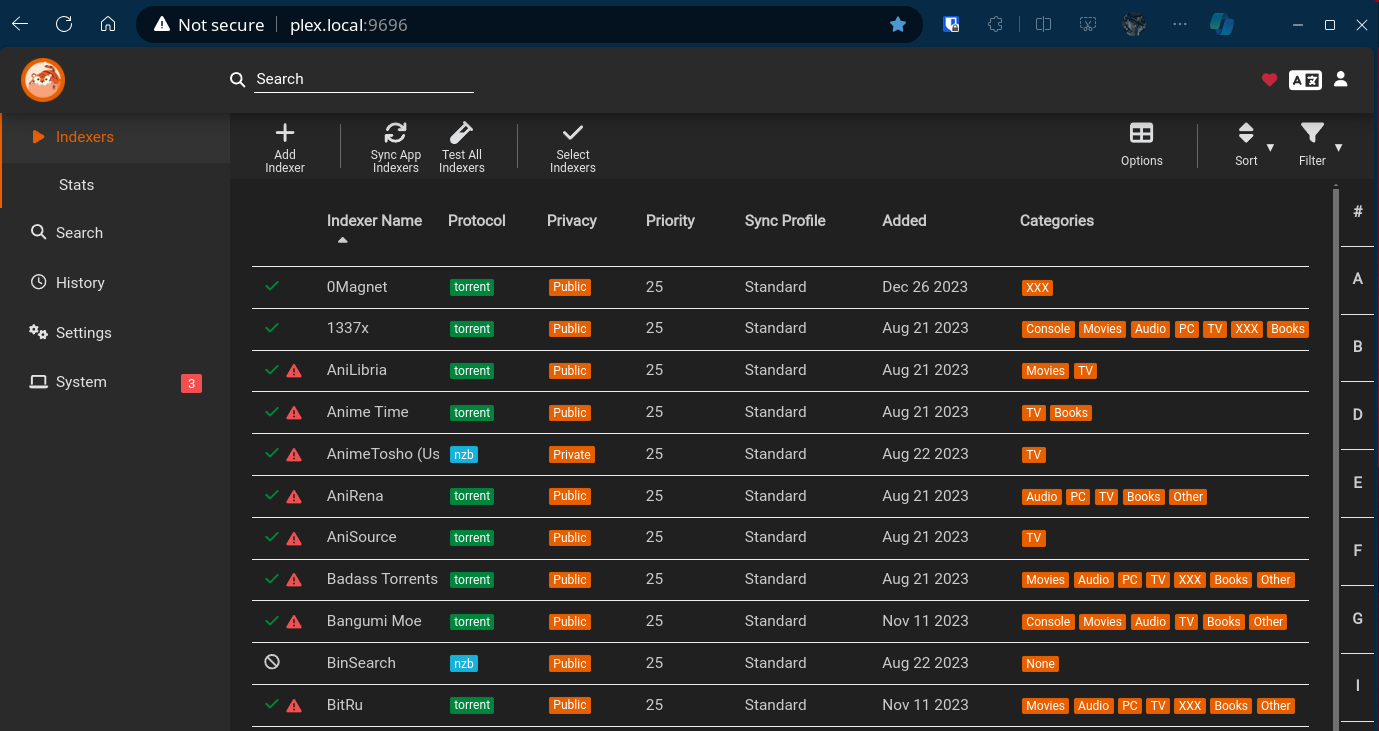
Notice it lists dozens of indexers, or trackers. It’s similar to Jackett. The difference is that Jackett is for manual searches you’ll do yourself, straight from QBitTorrent. Prowlarr’s indexers, on the other hand, get configured straight into Sonarr and Radarr. Here’s where the confusion starts, let’s understand it:

Both in Sonarr and Radarr, besides Download Clients, where we can configure QBitTorrent, there’s also this “Indexers” option, where we can configure which trackers to search for the media.
Think of a tracker like a public mini-Google, it’s where people register their torrents when they want to share. Torrents aren’t magic and don’t appear out of nowhere. Someone has to create a record somewhere. But there isn’t just “one” place: it’s a distributed network and any participant can put up a tracker if they want. It’s as if you could put up your own miniature Google, just to register torrent files.
It’s a pain to keep managing this. Some small trackers decide to go offline, new ones appear, configs get changed, and we have to keep managing this manually, both in Sonarr and Radarr. That’s what Prowlarr is for: to manage the trackers for you. Let’s understand how.
In the Prowlarr settings, we start by configuring where to find our Sonarr and Radarr services:

For example, this is my Sonarr config. Notice the hostname is “sonarr” and that works because in my docker compose I bring all services up on the same VLAN, and by default docker registers the service name configured in the YAML file as the hostname. If you don’t understand Docker, be sure to watch my videos about containers.
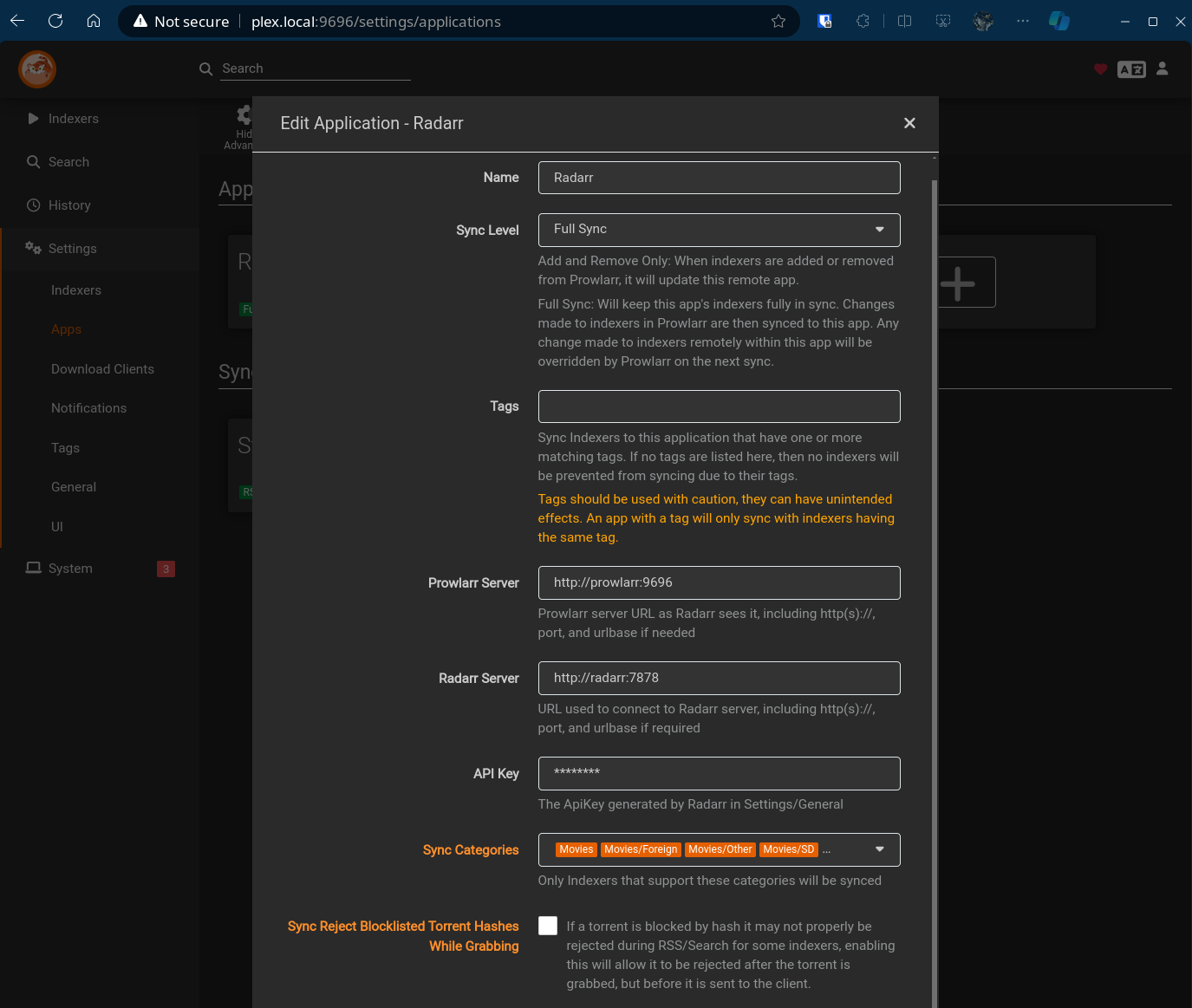
We also need to configure access to QBitTorrent:

This other one, SABnzbd, uses another, older download protocol, based on USENET newsreaders. Yes, that old Usenet. Those who know, know. I keep torrent as the primary, but I keep SABnzbd configured as a second source, because a lot of content only exists in those older groups. If you’re going to use it, apply the same extension protection as QBitTorrent: in the sabnzbd.ini file, in the [misc] section, set unwanted_extensions = exe, scr, bat, cmd, msi, lnk, com, vbs, pif and action_on_unwanted_extensions = 2, which tells it to abort the whole download if one of those shows up. That way Sonarr and Radarr see the failure and look for another source.
Finally, many trackers today implement some kind of bot protection using Cloudflare captcha, you know that thing that goes “are you a human?”. To get past that, we need the FlareSolverr service, which we can bring up in the docker compose like this:
  flaresolverr:
    image: ghcr.io/flaresolverr/flaresolverr:latest
    restart: unless-stopped
    volumes:
      - /home/akitaonrails/flaresolverr/config:/config
    ports:
      - '8191:8191'
In Prowlarr it enters as an “indexer proxy”. You register FlareSolverr pointing to http://flaresolverr:8191/, create a tag for it, and mark only the indexers that sit behind Cloudflare with that tag. Those then start solving the captcha under the hood, and the others don’t even need to go through it:

We’re not done yet. On the main screen, you go enabling the indexers that make sense for you. Don’t enable everything: it gets heavy and, worse, some indexers serve more traps than good content. Check each one’s tags. Some indexers are porn-only, some are only Russian or Chinese content, those I skip.
The ones that serve me well today are EZTV and 1337x (both behind Cloudflare, so they depend on FlareSolverr), YTS for movies, and AnimeTosho plus Nyaa for anime. In total I’m left with somewhere between 18 and 21 active indexers per app. And more important than enabling the good ones is disabling the bad ones: I turned off LimeTorrents and TorrentDownload, because, together, they generated more than two hundred downloads and almost no usable import, on top of being a recurring source of malware and fakes. Fewer good indexers is worth more than a pile of bad ones.

At the end, it’s good to click “Test All Indexers” to check which ones are still active or not. And finally, we can click “Sync App Indexers”, which will register all the indexers we know are working into Sonarr and Radarr. Get it? Prowlarr will configure both with the most up-to-date indexers, and remove the ones that are no longer active. We don’t need to configure each of them manually.

It’s important to understand this, because otherwise you’ll see Sonarr and Radarr not managing to download anything and won’t know why: but it’s because the indexers are wrong or obsolete or insufficient. Spend a good amount of time reading the Prowlarr documentation.
Plex (Private Netflix)
To watch everything you download, there are several options. If it’s just for you, you can just download everything to an external drive or something, and watch directly from your PC or laptop. Depending on your Smart TV or game console, you can also connect your drive or flash drive via USB and watch directly.
If you want something a bit more sophisticated, and have a spare PC or Raspberry Pi, you can install Sonarr, Radarr, and share the downloads directory over the network, using protocols like CIFS, which is for Windows shared folders. Again, many Smart TVs and consoles support mounting network shared folders.
But if you want something friendlier and more sophisticated, you can literally have your own “Private Netflix”, with a graphical interface similar to any streaming platform, showing thumbnails, descriptions, movie or show details, a video player and all that, and even suggestions of what to watch, movie suggestions based on what you’re watching, actor info and everything else.

There are several projects that do this. One of them, which the community likes more for being 100% open, is Jellyfin (derived from the old Emby). I recommend testing it, it has everything most people need. Just map the Sonarr and Radarr download folders and it will index everything and organize it for you. Then, from any PC, just access the web interface and it all just works.
But I personally prefer Plex, which is older, more closed (which is why some people don’t like it), but because it offers paid plans with exclusive features, the level of polish is clearly better. The interface is much prettier, and looks more “professional”. Jellyfin, as good as it is, still has that look like a backend programmer made it, with a lot of ill will toward UX and design.

On top of that, to watch on a Smart TV or Android TV, you need an app on the Google Play Store. Jellyfin doesn’t have an app for everything, some TVs, I don’t remember if LG or Samsung, don’t even have the app available. So you have to side-load. Not friendly. Plex, on the other hand, is available in way more places, so it tends to be more “plug and play”, similar to downloading the Netflix or Amazon Prime app.

Plex also has features that “just work”, trivial things you expect in a player, like a “skip intro” button or “resume from where you stopped” or “skip to the next episode” or “search and change subtitle”. That’s what interfaces like these offer you, so the usability really is a lot like watching Netflix. You don’t get that with a generic PC player like a VLC.

Bringing it up is easy, here’s my docker compose snippet:
  plex:
    image: plexinc/pms-docker:latest
    restart: unless-stopped
    environment:
      - TZ=America/Sao_Paulo
      - PUID=1000
      - PGID=1000
      - VA_DRIVER=IHD
      - PLEX_HW_TRANS_MAX=16
    volumes:
      - /home/akitaonrails/plex/config:/config
      - /home/akitaonrails/plex/data:/data
      - /home/akitaonrails/plex/transcode:/transcode
      - /mnt/terachad/Videos:/media
    devices:
      - /dev/dri:/dev/dri
      - /dev/bus/usb:/dev/bus/usb
    network_mode: host
There’s a small detail many people don’t understand: Plex does transcoding of the videos. That is, it will re-encode the video before sending it to the app or browser that will play it, and that’s heavy, it’s video stream conversion. If your server isn’t strong enough, your video will stutter when playing.
In reality, it’s more complicated than that. There’s a protocol called “Direct Play” or “Direct Stream”. There’s an article that explains this on the Plex site. If the PC, SmartTV, console, etc. support the codec of the video in question, in theory Plex will just pass the bits straight through, without trying to convert anything. Understand: not every device can play any video codec.
Most content nowadays is encoded in H.264 or H.265 or even AV1, which is newer and more efficient. The problem, let’s say you want to play it on a really old PC or a PS4. They’ll support H.264, maybe H.265 if you’re lucky, but certainly not AV1. So it would be super slow to try to play using only the CPU. The right thing is to have hardware instructions to play AV1, especially on an old CPU.
So Plex asks the device: “do you support AV1?” The player will say “nope, I’m weak.” So Plex will transcode from AV1 to H.264, for example. All of this is transparent to you.
But then you’ll notice that when playing the video it stutters, pauses all the time. It could be a bandwidth problem on your network, or it could be a problem of your Plex server being too weak, or of it not being configured for hardware transcoding, and brute-forcing it using only the CPU.
Watch my video about compression, where I explain codecs, but in short, the right thing is that whatever little PC you’re using for your Plex, it should have at least a minimum of hardware video encoding capability. Most have at least H.264 capability, like the Intel QSV instructions, check if your CPU has that support. It only won’t have it if it’s too old, like something more than 10 years back. If it’s a strong server, with an NVidia GPU, it’ll have things like NVENC, which supports H.265. If it’s a modern Intel CPU, it’ll support AV1.
In any case, on Linux, these instructions should be exposed on the /dev/dri device, which is why we need to map it into the docker container as I did above. Check that this device exists.
If everything is correct, in Plex you’ll have this option to configure the “Transcoder”:

We want to make sure the quality is set to “Make my CPU hurt” and that the “Use hardware acceleration when available” option is enabled too, so it will use /dev/dri to accelerate transcoding. And that makes a BRUTAL difference in speed. If you’re having stuttering playback, it’s very likely the transcoding.
When the device, your smartphone or your TV, supports the exact codec used in the video file we want to watch, in theory, Plex can pass the stream straight through, without transcoding, which is the ideal world, because then there’s no processing at all. That’s Direct Play. But for that the video files need to be in a certain codec, in a certain configuration. But even in a supported codec, if your TV is weak and doesn’t support 4K, and asks Plex for Full HD (1080p), then Plex will transcode from H.264 4K to H.264 1080p, for example. That’s why I say it’s more complicated than it seems.
IMPORTANT DETAIL: Recently I got confused playing some of my videos. I have the best hardware, both for the Plex server, with hardware acceleration, and an Android TV to play it which is my NVIDIA Shield Pro, on a wired network, etc. But some videos kept stuttering. And in the end the culprit wasn’t hardware, or config, or any of that, it was the damn subtitle:

Anyone who’s had to download subtitles has probably seen the most common format, which is .SRT (SubRip). Some who ventured further have seen other formats, like SSA (SubStation Alpha), TTML (Timed Text Markup Language), VTT (Web Video Text Track), VOBSUB, etc.
Yes, there’s a LOT more than SRT. In particular, if you do like me and rip UHDs and extract the subtitle tracks from the disc itself, apps like MakeMKV can download them in VOBSUB format (which is ok) or the cursed PGS (Presentation Graphic Stream Subtitle Format).
Most subtitle tracks are made to be sent to the player in parallel, and separate, from the video track. Just like the audio track goes separately. The player receives a video track, an audio track, and plays the two in sync. Same with the subtitle track, in the case of SRT or SSA or TTML files.
But PGS is different: it has graphical capabilities! I’m guessing here, but if you’ve seen colored, animated subtitles, that move or position themselves at absolute spots on screen (like sitting exactly on top of a billboard in the video, for example), then there has to be a step to rasterize and render that graphical subtitle ON TOP of the video stream. That’s a heavier encoding step, meaning it’ll be HEAVY to play in real time.
The solution: use Plex to search for a new subtitle, in SRT format, and ignore the PGS subtitle. Just doing that stopped the stuttering when playing.
Seerr (formerly Overseerr)
With just Sonarr and Radarr, plus Prowlarr’s indexers, it’s already enough to search and download everything. But there’s another app that makes discovering new stuff to download a lot easier. It’s called Seerr, and it’s the evolution of what used to be Overseerr. The Overseerr project merged with Jellyseerr, the fork that served Jellyfin, and the two became one: Seerr, which now serves Plex, Jellyfin and Emby in the same place. If you still hear people talk about “Overseerr” out there, this is it.
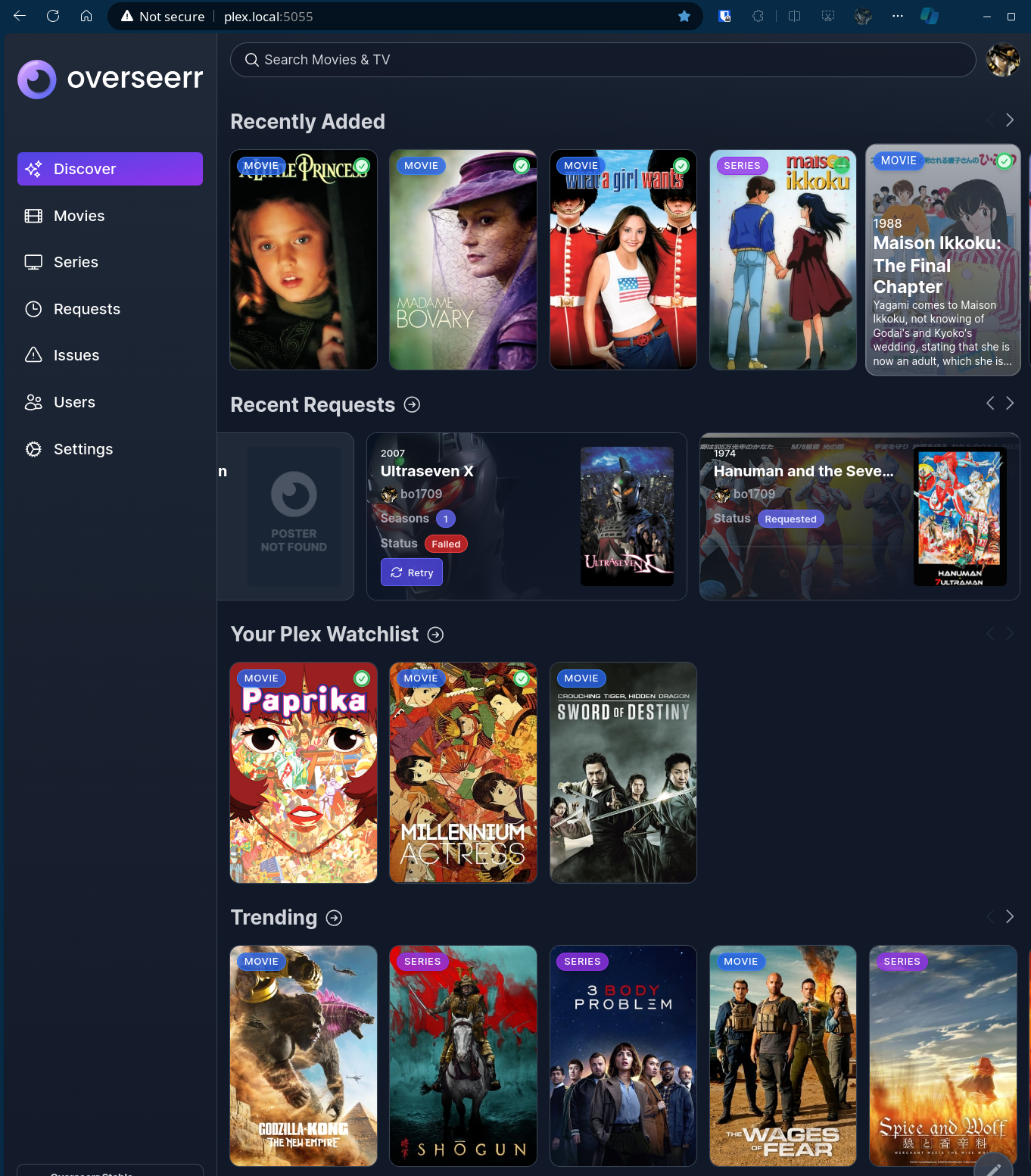
It goes to free online databases (like the IMDBs of the world) and keeps an eye on everything new coming out, everything that’s “trending”. If I want to find something new, it’s a good one. Even things I already know I want, I just search in Seerr and click “Request”:

I configure the integration with Sonarr and Radarr in the settings, so it knows who to send the request to. It all works integrated. I just need to use the Seerr interface to request things and I can forget about Sonarr and Radarr running in the background.
Bazarr (subtitles)
I don’t need it, but my girlfriend sometimes prefers watching with Portuguese subtitles. And it’s a pain because there isn’t always one, or what exists is low quality. By the way, let me warn you that both official and unofficial subtitles, I’m tired of seeing wrong translations. My fun is finding the errors in the subtitle. If you depend on subtitles, know that many important meanings are actually wrong. Always prefer the original.
Back in the day you had to go manually to sites like OpenSubtitles.org, download the “.SRT” file, rename it the same as the video file name and keep testing manually to see if it was in sync or not.
There are two ways to solve this. One is through Plex itself, which has the option to search subtitles in various languages and keep testing them straight from the player interface. It helps a lot because it skips the step of having to sit at the PC, manually downloading files. As I explained in the previous section, in my case, since the UHD backup subtitles were extracted in PGS format, I need to search in SRT format so it doesn’t stutter when playing.

Another way is to try downloading the subtitles automatically beforehand. This isn’t perfect because there are several versions of subtitles, some made for DVD, others for BluRay, some even for the more popular “CAM” versions, which are torrents of videos recorded straight in the theater with a smartphone, the crappiest version of all.
It’s very important to rename the video files in the right format, with the metadata well organized, as explained in the Reddit forum I mentioned at the start of the article. That helps Bazarr match the right subtitle to the right file. And a heads-up: Brazilian Portuguese is one of the languages with the fewest subtitles. It’s easier to find them in French, Italian or Russian than in Portuguese.
To make this easier we have the Bazarr service:

In the Bazarr config, we point it to our local Sonarr and Radarr services, so it finds out every time a new show episode or a new movie appears, and schedules a subtitle search:

The main thing is to configure the Providers, which are the sites the subtitles come from. This is where the difference between “finds nothing” and “finds almost everything” lives. The five that give me the best results are: opensubtitlescom, tvsubtitles, yifysubtitles (movies only), animetosho (for anime, no account needed) and gestdown (an Addic7ed proxy for English, also no account). One gotcha that cost me hours: the OpenSubtitles.com provider wants your username, not your email. If you put the email, it errors out with “you cannot consume this service”, and still keeps you grounded for 12 hours even after fixing it.

To bring up the service, in the docker compose, we have this snippet:
  bazarr:
    image: ghcr.io/linuxserver/bazarr:latest
    restart: unless-stopped
    environment:
      - TZ=America/Sao_Paulo
      - PUID=1000
      - PGID=1000
    volumes:
      - /mnt/terachad/Videos/radarr:/movies
      - /mnt/terachad/Videos/sonarr:/tv
      - /home/akitaonrails/bazarr/appdata/config:/config
    ports:
      - '6767:6767'
Here we need to map the radarr and sonarr folders so it knows where to write the subtitles. One detail that trips a lot of people up: map the exact same subpaths that Radarr and Sonarr use (in my case, /movies and /anime), otherwise Bazarr keeps complaining that it “can’t find the video file for analysis” across the whole library.
The last step, and the one that finally made Bazarr useful for me, is the language profile. I created a “Brazilian Portuguese with English fallback” profile: it lists pb first and en after, with the cutoff on pb. In practice, Bazarr searches for both, downloads whichever shows up first, and considers the item resolved once a Portuguese subtitle exists. If pt-BR never appears, English stays as the backup.
And the trick, which cost me dearly: every item needs a language profile assigned. Bazarr silently ignores any movie or show without a profile. When I went to check, there were 140 shows and 201 movies with no profile at all, silently ignored ever since they were added to the library. Marking the profile as default only covers what you add from then on; for the library that already exists, you have to assign the profile in bulk, all at once, to everything already there.
There’s also a sibling problem to this one, but on the audio side. Every now and then Sonarr or Radarr download a release whose only audio is a foreign dub: an Italian one, a French one, a Russian one. And no subtitle saves wrong audio. For that I use a Custom Format in both, the “foreign-language-only” one, which recognizes foreign-dub markers (ITALIAN, FRENCH, RUS, GERMAN and so on) and gives a score of -500, which makes the release get refused at search time. A detail I learned the hard way: a Russian release came with the whole title in Cyrillic, without any “RUS” in Latin letters, and slipped right past. So the filter also needs to catch any Cyrillic character.
After I fixed the providers, moved the entire library onto that profile and turned on this audio filter, Bazarr stopped being the most useless service in my stack and became one that resolves most cases on its own. When something’s still missing, then yes I hunt for it by hand through Plex, but today that’s the exception. Just to reiterate what I said before: Brazilian Portuguese subtitles are among the scarcest out there, so even with everything set up right, sometimes there just isn’t one.
Lidarr (Music)
I’m not much of a music person. I have a few MP3s I downloaded decades ago and, day to day, I play the Spotify Top 50 playlist and that’s fine. But the same logic as Sonarr and Radarr applies to music, so I ended up setting it up too: the service is called Lidarr.

It catalogs your artists, cross-references discography databases and goes after the missing albums, marking each artist as “Monitored” to look for new releases on its own, the same way Sonarr does with show episodes. In the screenshot above you can see my library with everything in “Lossless”, which is the quality profile I configured.
In the docker compose it’s the same pattern as the others:
  lidarr:
    image: ghcr.io/linuxserver/lidarr:latest
    restart: unless-stopped
    depends_on:
      - qbittorrent
    environment:
      - TZ=America/Sao_Paulo
      - PUID=1000
      - PGID=1000
    volumes:
      - /home/akitaonrails/lidarr/appdata/config:/config
      - /mnt/terachad/Music:/music
      - /mnt/terachad/Downloads/torrents:/downloads
    ports:
      - '8686:8686'
The configuration is identical in spirit to Radarr and Sonarr. In Settings and Download Clients I register the same QBitTorrent, but using its own category called lidarr, so it doesn’t mix the music downloads with the movie and show ones. The library root folder points to /music, and the quality profile can be left open (the “Any”, which grabs whatever shows up) or locked to “Lossless” when you only want FLAC, which is my case.
And the best part: I don’t configure the indexers by hand. Prowlarr, which I explained above, also registers Lidarr as an application and syncs the music-category indexers on its own. It’s the same “Sync App Indexers” it does for Sonarr and Radarr, now for music too.
To listen, Plex itself already plays music: just create a Music-type library pointing to that folder, and on the phone the Plexamp app is great just for this. And, the same way I have Kavita as “Plex for manga”, for music you can also use Navidrome, an open source streaming server like a private Spotify, which indexes the same /music folder (read-only) and has several compatible phone apps. Lidarr downloads and organizes, Navidrome or Plex serve.
Other Services
In my repository there are other Docker Compose files for my local infra. I won’t explain them in detail, but just so you know:
To block banners, ads, trackers and even malware sites across the whole network, I use filtered DNS. For a long time I ran a local Pi-Hole for that, which is a home DNS server with built-in blocking. It works great, but it needs maintenance. These days I switched to a hosted service, NextDNS, which does the same ad, tracker and malware blocking, except I don’t have to maintain any server, and it comes with encrypted DNS out of the box.
And why does encrypted DNS matter? A DNS query, by default, is an open text protocol. Your provider knows exactly everything you browse. I prefer not to hand them that data for free. With NextDNS the queries go out encrypted and still pass through the blocklist I choose. It doesn’t replace an anti-virus, but it makes it much harder for third parties to build a fingerprint of my browsing habits, and it’s a lot less work than the Pi-Hole I used to run.
Now, in the kaizoku-docker-compose.yml file there’s another service like Sonarr for TV, Radarr for movies, which is Kaizoku for manga. If you read manga online, you’ve probably seen many sites getting shut down over copyright, intellectual property and all that. Eventually, the online manga you read will disappear. With Kaizoku we can preserve them locally too.

Kaizoku is only for downloading. To read, we need a reader, the same way we have Plex for video, we have Kavita Reader to read the downloaded manga. Just like Plex, on the first setup you just point it to the folder where Kaizoku downloads everything, then Kavita handles organizing the library, downloading covers and other metadata. It’s literally Plex for Manga.

I haven’t explored this service much yet. Either there are still things to refine in it, or I just don’t know how to configure it right, but not everything downloads covers correctly. See how it doesn’t look nice. If you have tips about Kavita and Kaizoku, be sure to share them below.

For the actual reading, it’s a lot like a Kindle Web or other online manga sites. You can read page by page, or “scroll” the whole chapter, it remembers where you stopped and basic stuff like that. It could be a good project to contribute to, if you feel like practicing with open source.
Conclusion
I’m very happy with the current state of file-sharing services. Don’t waste too much time overthinking. Just install them and have fun. The code for everything is open, if you’re a programmer, go dig through the code and learn something new, and who knows, even contribute.
I’m not into apocalyptic theories, conspiracy theories, or anything like that. I just consider that whatever I don’t have physical control over, I don’t have. If what “is mine” is under a third party’s control, then “it isn’t mine”. That’s the principle. I want everything that’s mine under my sole and exclusive control, period. It doesn’t matter if it’s less convenient, it doesn’t matter if it’s more expensive. It’s a matter of principle: mine is mine and that’s final.
Besides, on the streaming platforms, not everything exists. A lot of stuff from past decades was simply erased from memory. Many don’t even remember anymore, especially those who didn’t see it back then. I feel nostalgia for TV shows, movies, that don’t exist online. Many don’t even exist on physical media. There are movies that after VHS never even came out on DVD. There are DVDs that never came out as Blu-Ray. There’s stuff on physical disc that will never come to streaming. There’s stuff on streaming that will be erased soon, and many won’t even notice.
What’s mine, is mine. They can erase as much as they want. What’s mine, no one erases. If you value what’s yours, start exploring these options. It doesn’t have to be a giant setup like mine. Any spare external drive is enough to start. Start small, grow little by little. I’ve been collecting this stuff for decades! I didn’t start today.